

Sync with Clover
Get Clover changes now and read the sync status.
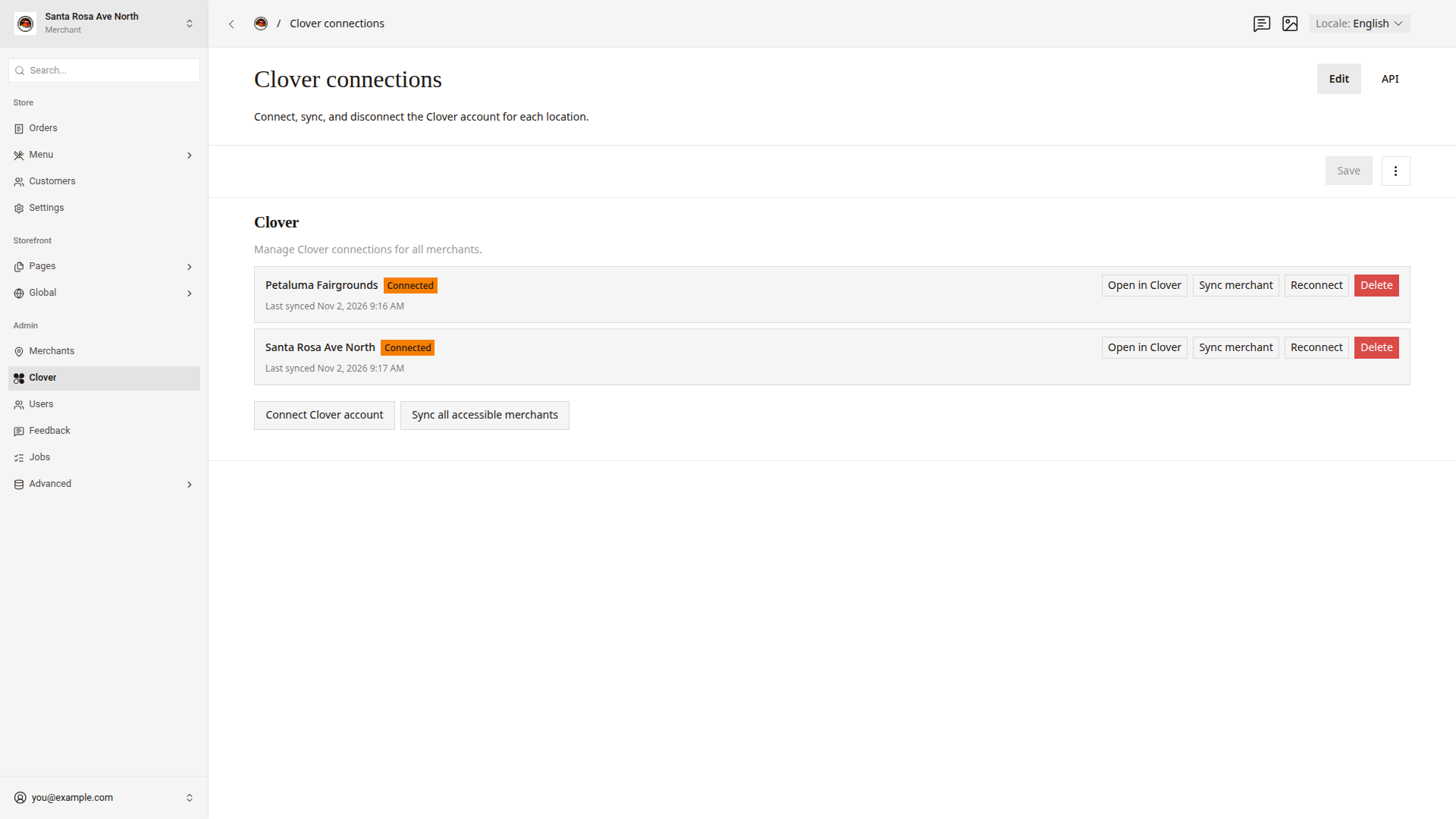
Sync a store when a change that you made in Clover does not show in the dashboard after 1 minute. Also sync after you change an item group in Clover, because item group changes arrive only with the sync that runs every 15 minutes.
Sync one store
- Click
Admin > Cloverin the side menu. - In the store's row, click
Sync merchant. The button shows "Queueing..." until the sync is queued.
A message shows "Clover sync queued." When the sync ends, Last synced in the store's row shows the new time. Refresh the page to see it.
You can also click Sync now in the Clover Sync section of the store record.
Sync every store
- Click
Admin > Cloverin the side menu. - Click
Sync all accessible merchants.
A message shows how many stores the dashboard syncs, such as "Queued 2 sync job(s)."
Sync one entry
Sync one entry when a single item, modifier, or category looks wrong. The sync copies only that entry from Clover.
- In the store switcher, choose the store.
- Click
Advanced > Clover datain the side menu, then the kind of entry, such asItems. - Type the name in the search box, and click the entry.
- In the
Clover Syncsection, clickSync now.
A message shows "Clover sync queued."
Read the sync status
The Clover Sync section of a store record or a Clover entry shows the last sync.
Status | What it means |
|---|---|
Never synced | The dashboard has not copied this store or entry yet. |
Syncing | The sync is running. |
Synced | The last sync worked. Last synced shows when. |
Error | The last sync failed. Last sync error shows the reason. |
On Admin > Clover, each store row shows "Last synced" and the time, or "Never synced". A failed sync shows its error in red under the time.
Fix a sync error
- If the message shows "Reconnect this merchant to Clover before syncing.", reconnect the store. Connect a store to Clover shows how.
- For any other error, click
Sync merchantagain. - If
Statusstill showsError, copy the text ofLast sync error. - Send the text to a developer, with the store name.
Good to know
- You do not need to sync after a change to an item, the stock, a category, a modifier, a modifier group, or the store hours. Clover tells the dashboard about these changes, and the dashboard usually copies them within 1 minute.
- If you click a sync button while a sync waits to start, the message shows "Clover sync is already queued."
- A sync never changes Clover. It copies from Clover to the dashboard only.