Connect a store to Clover
Connect a new store to Clover, reconnect a store, or remove a store.
Connect a store when a new restaurant or food truck starts to take online orders. Reconnect a store when its row shows Needs re-authorization. You need the sign-in for the store's Clover account.
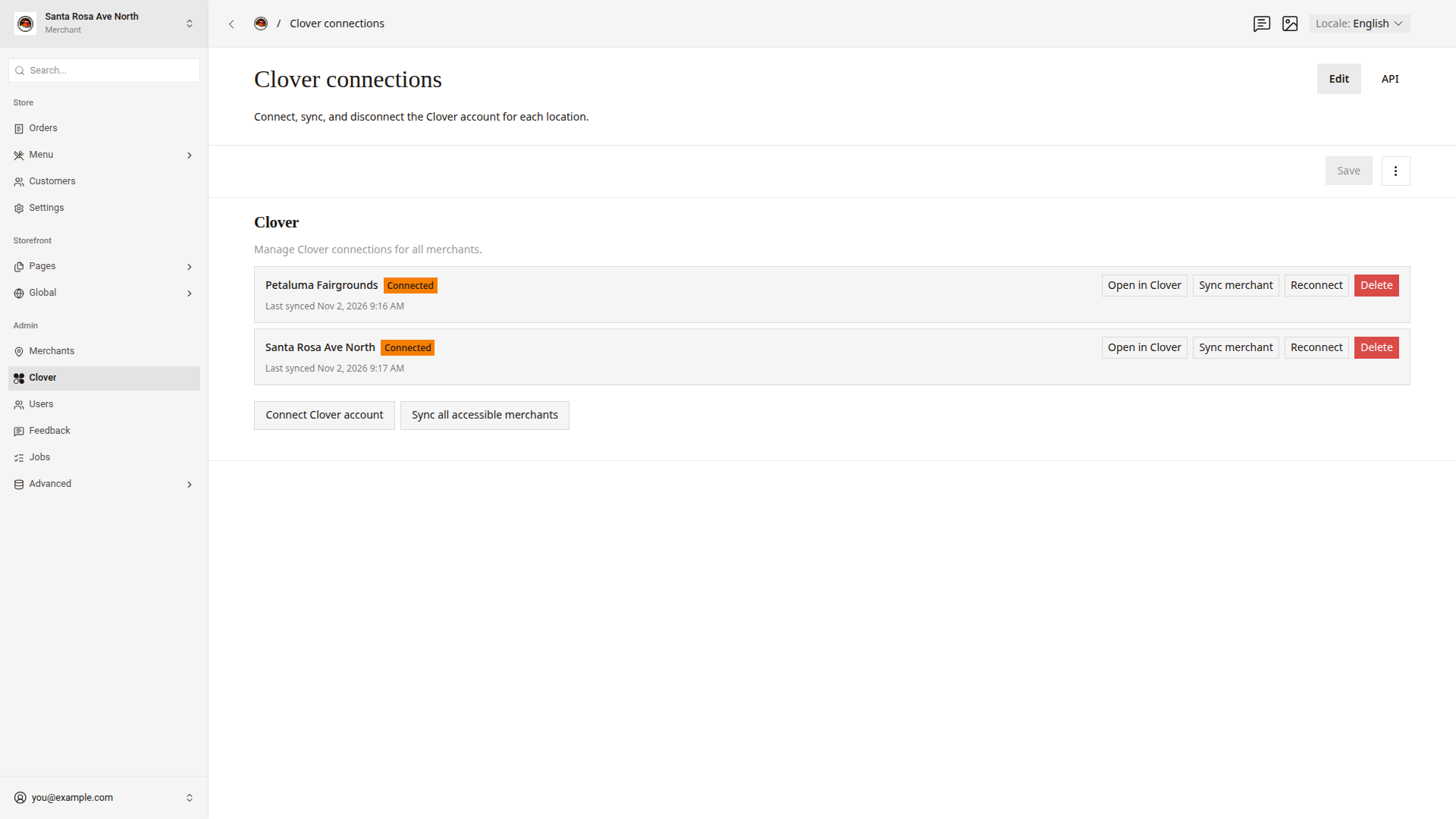
Each store row on Admin > Clover shows one of these statuses.
| Status | What it means |
|---|---|
Connected | The dashboard gets the store's menu, stock, and payment updates from Clover. |
Needs re-authorization | Clover stopped the connection. The dashboard gets no changes until you reconnect the store. |
Not connected | The store has no Clover connection. |
Connect a store
- Click
Admin > Cloverin the side menu. - Click
Connect Clover account. The Clover sign-in page opens. - Sign in with the store's Clover account.
- Approve the El Roy's app for the store.
Clover sends you back to Clover connections. A message shows "Clover merchant connected." The store shows in the list with Connected. The dashboard then copies the store's menu, address, and hours from Clover.
After the first sync, set the store's ordering times. Set ordering times shows how.
Reconnect a store
- Click
Admin > Cloverin the side menu. - In the store's row, click
Reconnect. The Clover sign-in page opens. - Sign in with the store's Clover account.
- Approve the El Roy's app for the store.
The row shows Connected again, and the dashboard gets changes from Clover again.
Remove a store
Delete removes the store and all of its Clover data from the dashboard. To stop online orders and keep the store, set the store to Hidden instead. Open, close, or pause a store shows how.
- Click
Admin > Cloverin the side menu. - In the store's row, click
Delete. TheDelete merchantbox opens. - Click
Delete.
A message shows "Merchant deleted." To add the store again, connect it to Clover again.
Good to know
- If the dashboard shows "Authorization was cancelled.", click
Connect Clover accountand approve the app this time. - If the dashboard shows "Invalid or expired authorization state. Try again.", click
Connect Clover accountagain. - If the dashboard shows "Connecting the Clover merchant failed.", try one more time. If the same message shows, ask a developer.
Open in Cloveropens the store in Clover.- The store's name, address, phone number, and hours come from Clover. Store details shows them.