

Find an order
Search for an order and read its payment, kitchen, and receipt status.
Find an order when a customer calls about it or when it shows in Needs attention. The order shows if Clover took the payment, if Clover accepted the kitchen ticket, and if the receipt email went out. You cannot change an order in the dashboard.
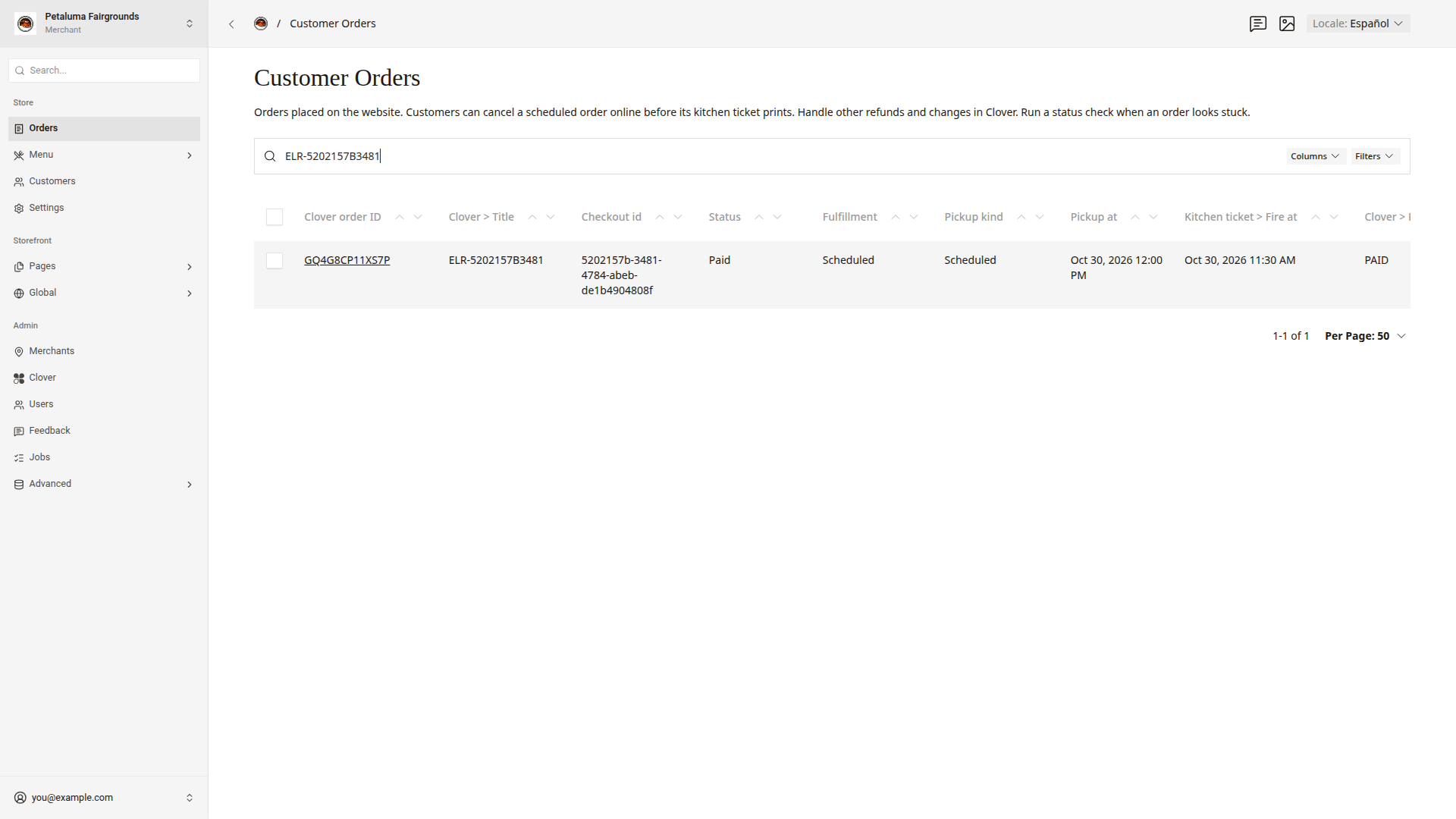
Search for an order
- In the store switcher, choose the order's store.
- Click
Ordersin the side menu. TheCustomer Orderslist opens. - Type the order number in the search box, such as
ELR-5202157B3481. - Click the order in the
Clover order IDcolumn.
The order number shows in the Clover > Title column. You can also search by the Clover order ID.
Read the payment status
Status at the top of the order shows the payment.
Status | What it means |
|---|---|
Pending | The customer started to pay. The dashboard checks the payment with Clover every minute for the first 24 hours. |
Paid | Clover took the payment. |
Failed | The order did not go through. Failure Code shows why. |
Unknown | The dashboard could not confirm the payment yet. The dashboard checks again every minute for the first 24 hours. |
Failure Code shows one of these reasons.
Failure Code | What happened |
|---|---|
Payment failed | The card did not go through. |
Total changed | The total changed between the cart and the payment. The customer saw the new total. |
Order failed | Clover could not make the order. |
Fulfillment shows Scheduled after the payment, or Canceled if the customer canceled online. Pickup kind shows ASAP or Scheduled, and Pickup at shows the pickup time.
Read the kitchen ticket
Scroll down to the Kitchen ticket section. Fire at shows when the website sends the ticket, and Status shows what happened.
Status | What it means |
|---|---|
Held | The ticket waits for the fire time. |
Sending | The website is sending the ticket to Clover. |
Sent | Clover accepted the print request. The dashboard cannot confirm that paper printed. |
Failed | The website could not confirm that Clover accepted the print request. Last error shows why. The website tries again every minute until Attempts shows 5. |
Skipped | The ticket did not print, because the customer canceled or the fire time passed more than 1 hour ago. |
Read the receipt status
Scroll down to the Receipt section. Receipt email shows where the receipt goes.
Status | What it means |
|---|---|
Pending | The receipt waits for the payment. |
Sending | The website is sending the receipt. |
Sent | The receipt went out. |
Error | The receipt did not go out. The website tries again after 1, 5, 15, and 60 minutes, up to 5 tries in all. |
Skipped | The order has no email address, or the customer canceled. |
Good to know
- The
Orderslist shows only the orders of the store in the store switcher. To find an order at another store, switch the store first. Fulfillmentdoes not change toReady. Tell the customer in person when the order is ready.- Refunds and changes to an order happen in Clover. Refunds and cancellations shows how.
- If
StatusstaysPending, or a refund that you made in Clover does not show, check the order again with Clover. Fix a stuck order shows how.