

Handle orders that need attention
Read each alert in Needs attention and fix the order.
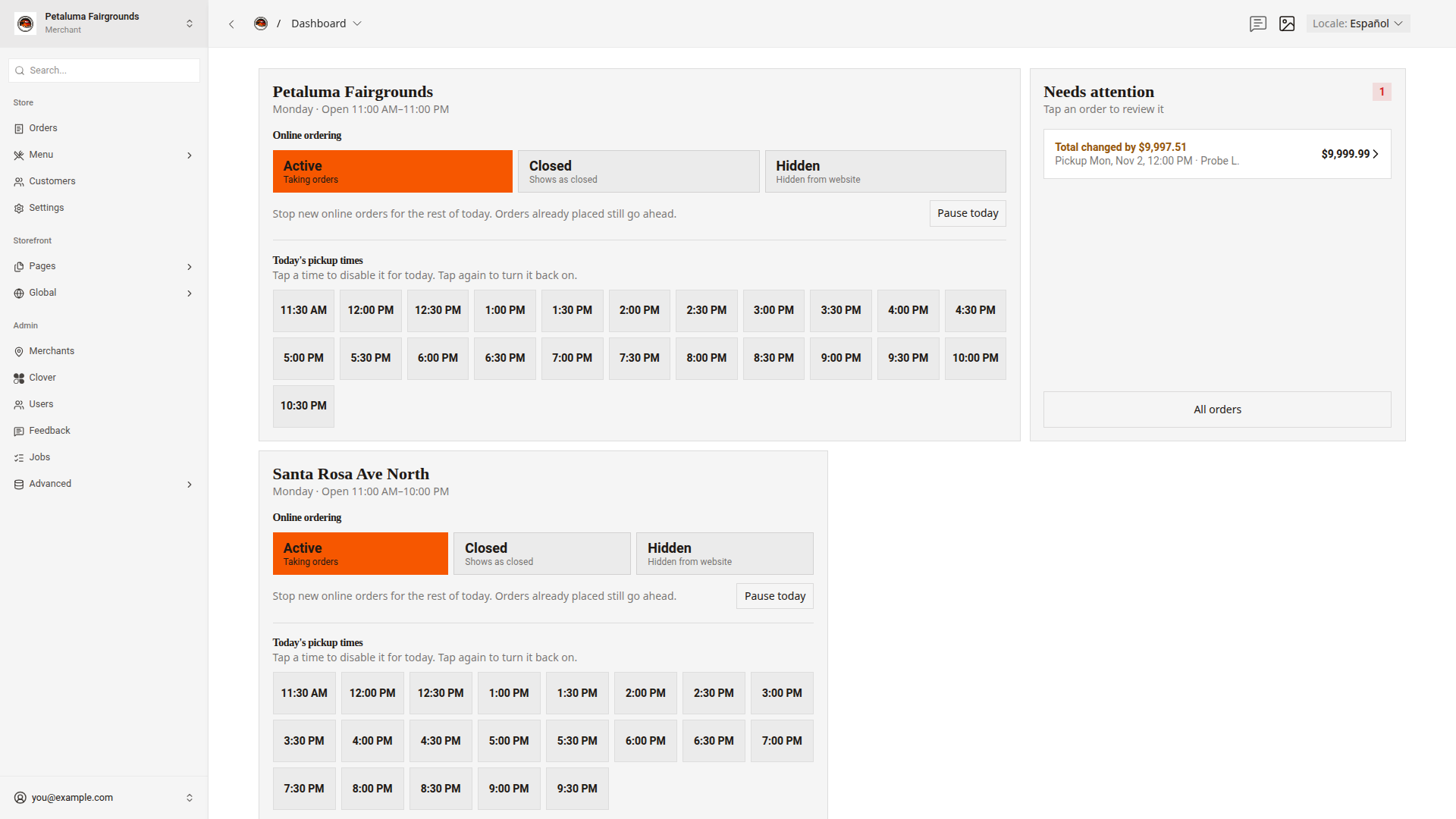
Needs attention on the dashboard home lists today's orders with a failed or unconfirmed payment, a failed refund, or a receipt that did not send. Payment declined and Total changed need no action, because Clover did not charge the customer.
Open Needs attention
- Open the dashboard home.
- In
Needs attention, click an order to open it.
Each row shows the alert, the pickup time, a short customer name, and the order total. The number next to Needs attention shows how many orders need attention. To see all orders, click All orders.
Payment declined
The card did not go through. Clover did not charge the customer, and the customer kept the cart.
You do not need to do anything. If the customer calls, tell them to try another card.
Total changed
The total in Clover was different from the total the customer saw. This happens when a price changes in Clover during checkout. The website stopped the order before the payment, so the card was not charged. The customer saw the new total and can order again.
You do not need to do anything.
Order failed
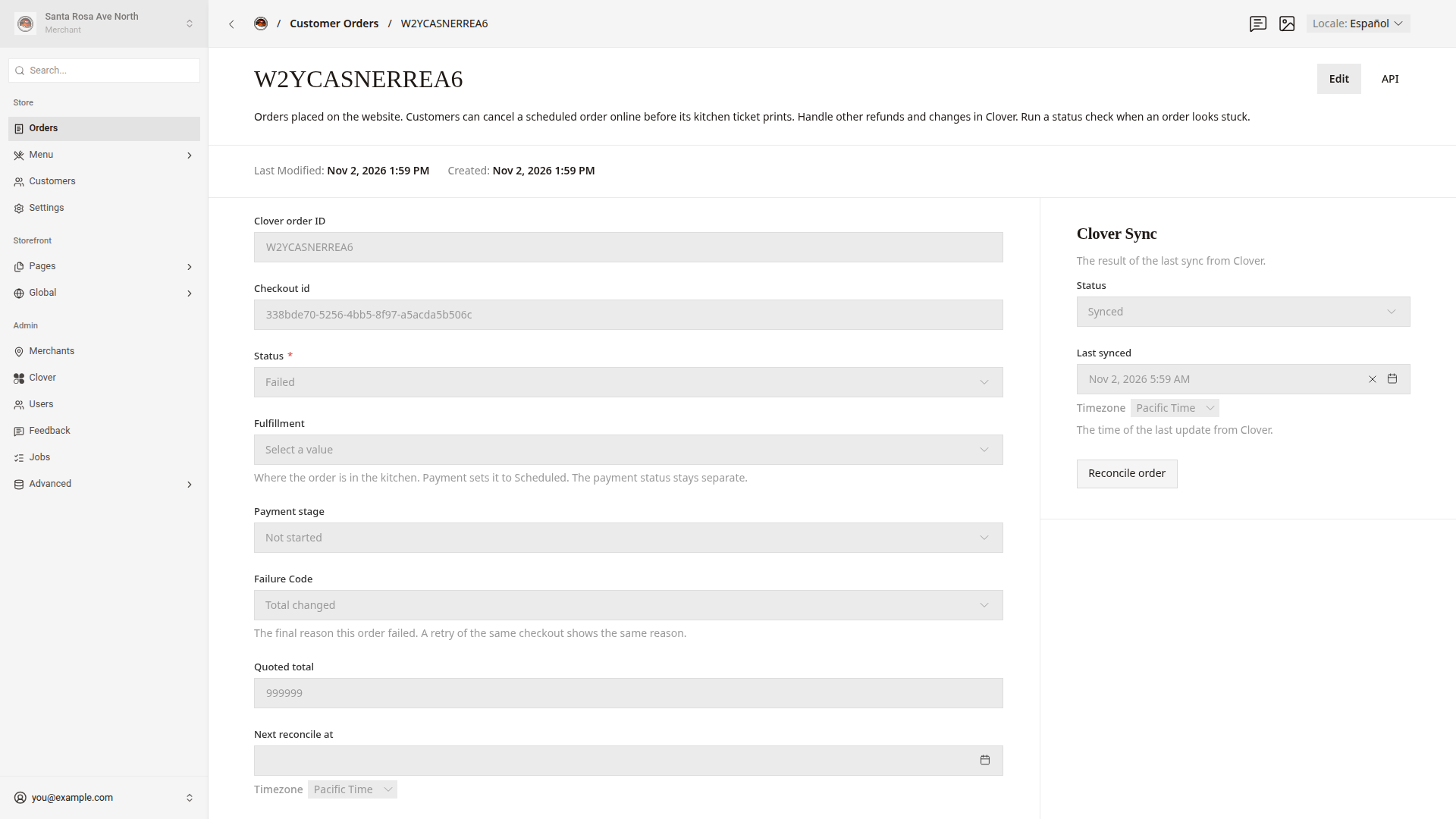
Clover could not make the order. To check that Clover did not charge the customer, follow these steps.
- Open the order.
- Note the order number in the
Cloversection, underTitle. - In Clover, look for a payment for that order number.
- If you find a payment, refund it in Clover.
Receipt not sent
The order is paid, but the receipt email did not go out after 5 tries. The kitchen still gets the order.
- Open the order.
- Scroll down to the
Receiptsection. - Check
Receipt emailfor a typo. - In the
Clover Syncsidebar, clickReconcile order. The website sends the receipt again.
If the email address has a typo, give the customer the order number in person or by phone.
Canceled online, refund not confirmed
The customer canceled a scheduled order on the website, but Clover did not accept the refund or did not confirm it within 5 minutes.
- Open the order.
- Note the order number in the
Cloversection, underTitle. - In Clover, open the order with that number.
- If Clover shows no refund, refund the full amount.
- In the dashboard, in the
Clover Syncsidebar, clickReconcile order.
The dashboard then marks the cancellation as Refunded and emails the customer. Refunds and cancellations has more details.
Other review reasons
Other rows show the reason from the dashboard's last check with Clover, such as "Payment remains unconfirmed." To find out if Clover charged the customer, follow these steps.
- Open the order.
- In the
Clover Syncsidebar, clickReconcile order. - Wait one minute, then refresh the page.
- If
Statusstill showsPendingorUnknown, look for the order number in Clover. - If you still cannot tell if the customer paid, ask a developer.
Good to know
Needs attentionshows today's orders only, and up to 5 at a time. To see older orders, clickAll orders.- Rows for declined, changed, and failed orders stay until midnight in the store's time zone. Other rows go away when the problem is fixed.
- A kitchen ticket that did not print does not show here. Fix a stuck order shows how to check the ticket.