

Store
Orders
Find an order, review payment and order lines, and refresh Clover data.
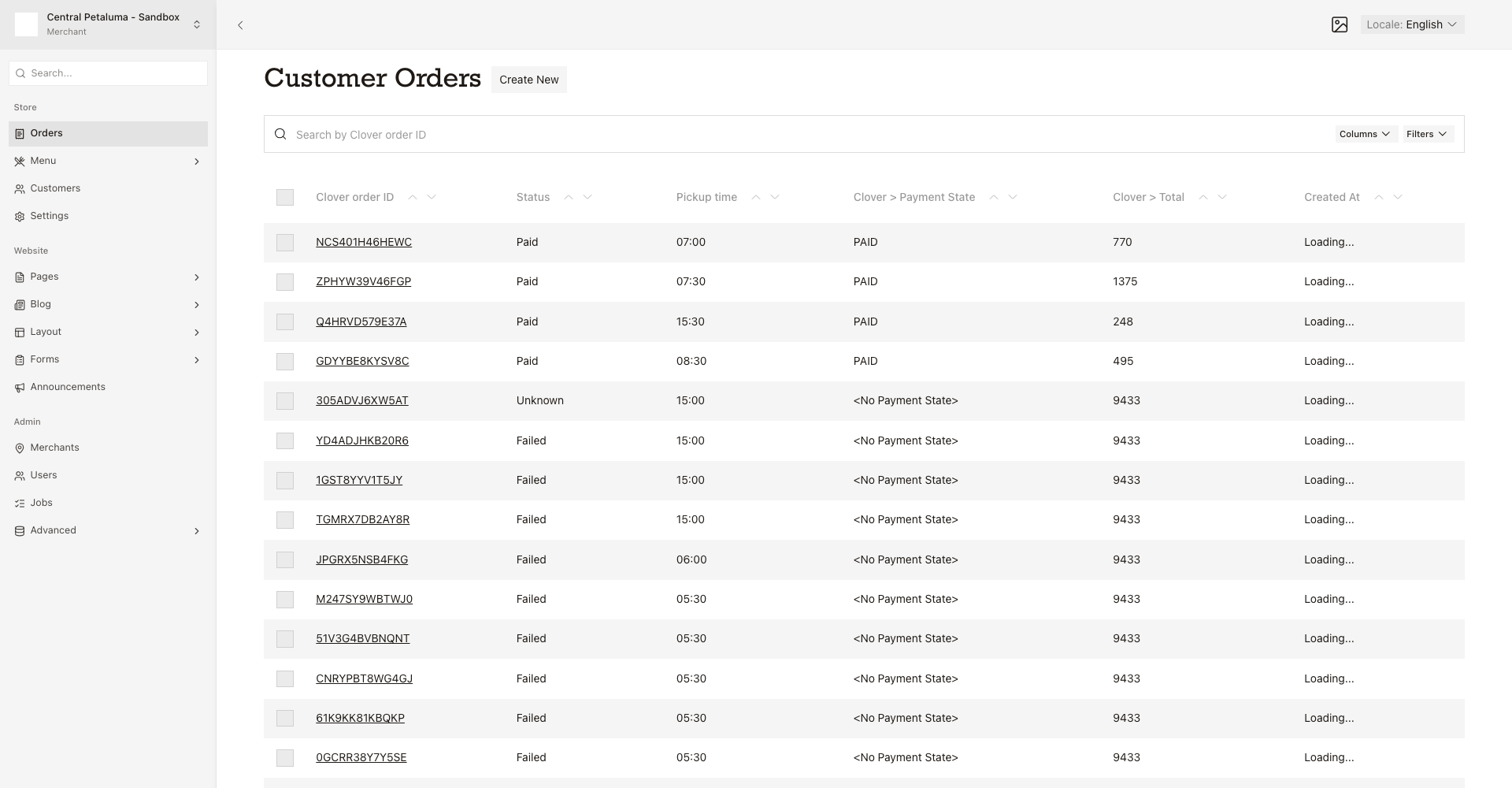
Orders lists every order placed on the website. The website creates the order. Clover, the register system at the counter, fills in the payment and the order lines.
Find an order
- Choose the location.
- Open
Store > Orders. - Search by order number.
- Open the row.
The list shows order number, status, pickup time, payment state, total, and the time it arrived.
Read an order
Check the customer, pickup time, and payment state. Also check the total, the order lines, changes to a line, and refunds. If the order failed, check the reason.
What each status means
Pending: the customer has not paid yet.Paid: the payment went through.Failed: the order did not go through.Unknown: the payment result never came back, so check Clover before you refund or remake the order.
Refresh the Clover details
Use Sync now only when the Clover values on screen look out of date. Wait for Last synced to change.
You cannot change an order by hand
Do not use
Create New. You cannot change a status by hand.