Open, close, or pause a store
Control whether a store takes online orders from the dashboard home.
Use a store's card on the dashboard home to stop or start online orders. A pause stops new orders for today's pickups. Closed and Hidden stop orders until you set the store back to Active.
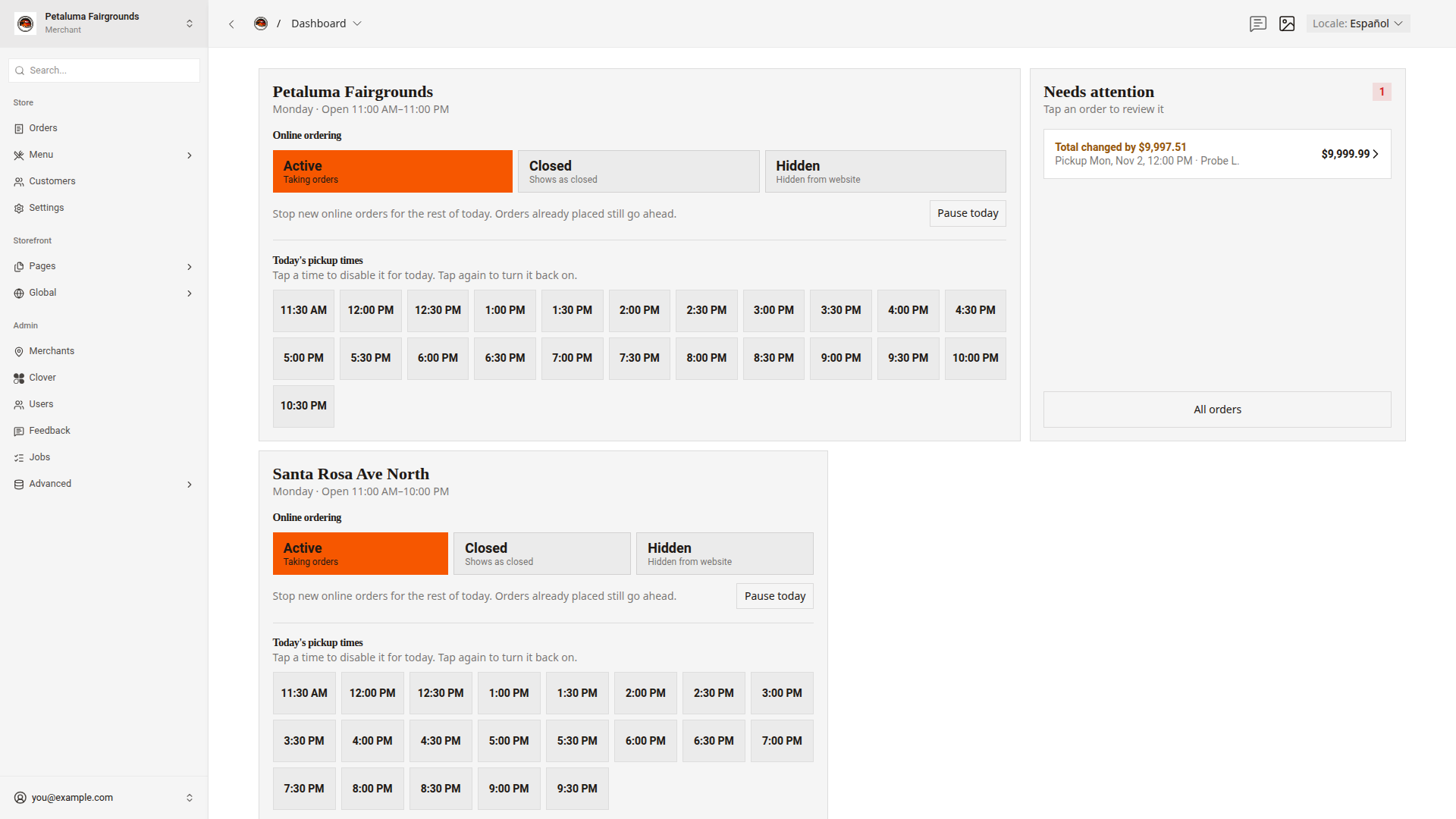
The examples on this page use the store Petaluma Fairgrounds. Your screen shows the name of your store.
Under Online ordering, three buttons show the store's state.
| Button | What customers see |
|---|---|
Active | Customers can order when the store has an available pickup. A pause still blocks today. |
Closed | The website shows the store as "Closed for online orders". The store takes no orders. |
Hidden | The store does not show on the website at all. |
Close a store
Close a store when it stays closed for more than today, such as for a holiday or a repair.
- On the dashboard home, find the store's card.
- Click
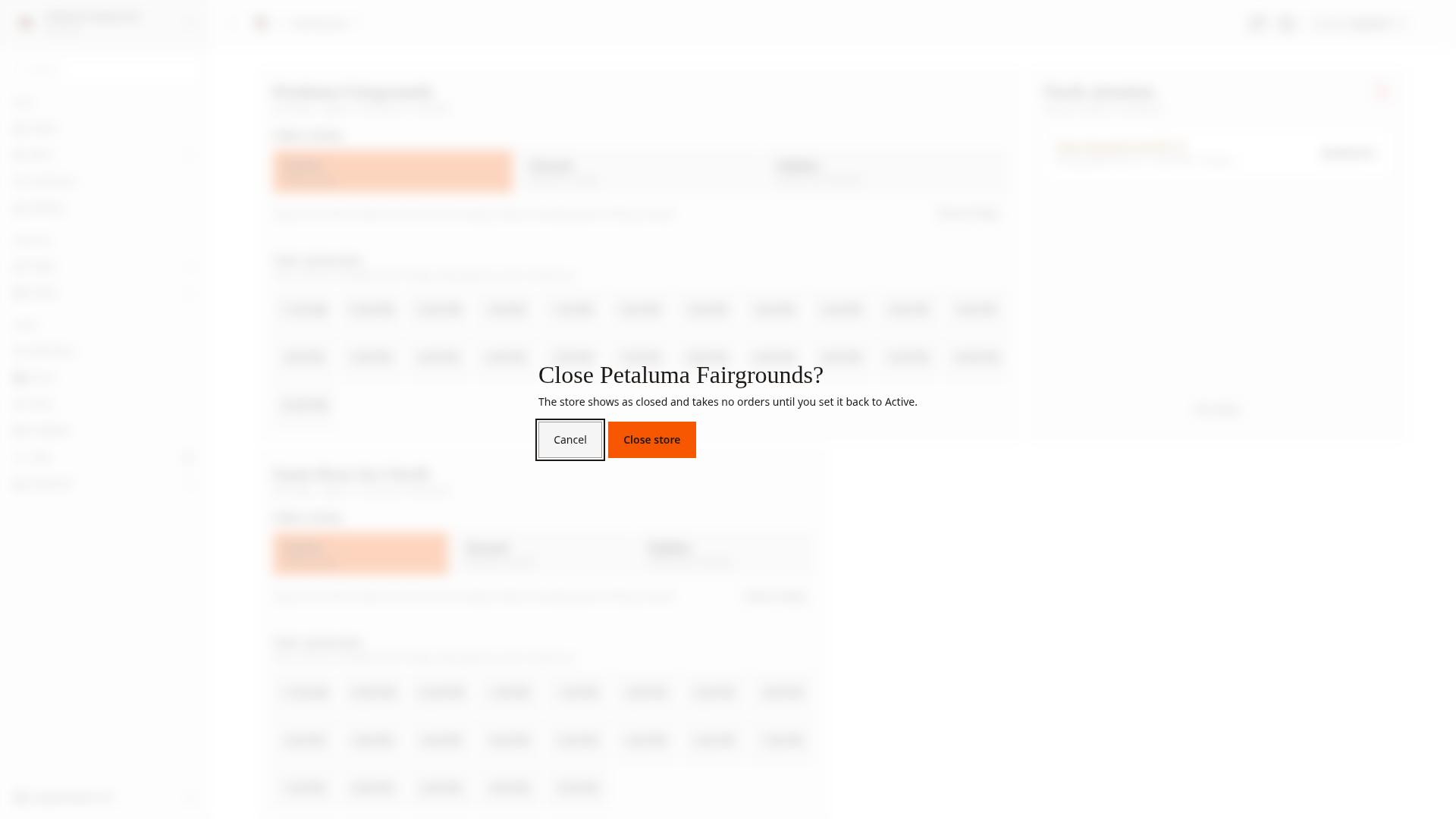
Closed. The "Close Petaluma Fairgrounds?" box opens. - Click
Close store.
A message shows "Petaluma Fairgrounds is Closed". To change the store back, click Undo in the message.
Hide a store
Hide a store when customers must not see it, such as a food truck that is off the road for a season.
- On the dashboard home, find the store's card.
- Click
Hidden. The "Hide Petaluma Fairgrounds?" box opens. - Click
Hide store.
A message shows "Petaluma Fairgrounds is Hidden". To change the store back, click Undo in the message.
Pause a store for today
Pause a store when the kitchen cannot take more orders for today's pickups. The pause ends at midnight in the store's time zone.
Customers can still book later days if Days ahead allows them. To block new orders for every day, use Closed.
- On the dashboard home, find the store's card.
- Click
Pause today. - In the box that opens, click
Pause today.
A message shows "Petaluma Fairgrounds is paused for today". The card shows "Paused for today. New online orders start again at midnight."
To take orders again before midnight, click Resume on the card. A message shows "Petaluma Fairgrounds takes online orders again".
Open a store again
- On the dashboard home, find the store's card.
- Click
Active.
The dashboard does not ask you to confirm. A message shows "Petaluma Fairgrounds is Active", and the store follows its pickup rules again. If today is paused, click Resume to end the pause too.
Good to know
ClosedandHiddenstay on until you clickActive. Only a pause ends at midnight.- Orders already placed still go ahead. Scheduled orders still print their kitchen tickets at the fire time.
- To turn off one pickup time and keep the others, use Turn off pickup times.
- The store hours come from Clover. To change the hours, change them in Clover.