

Leave feedback
Point at part of a dashboard screen and send a comment.
Leave feedback when part of a dashboard screen is wrong or unclear. You click that part of the screen and type a comment. The dashboard saves the comment with a screenshot.
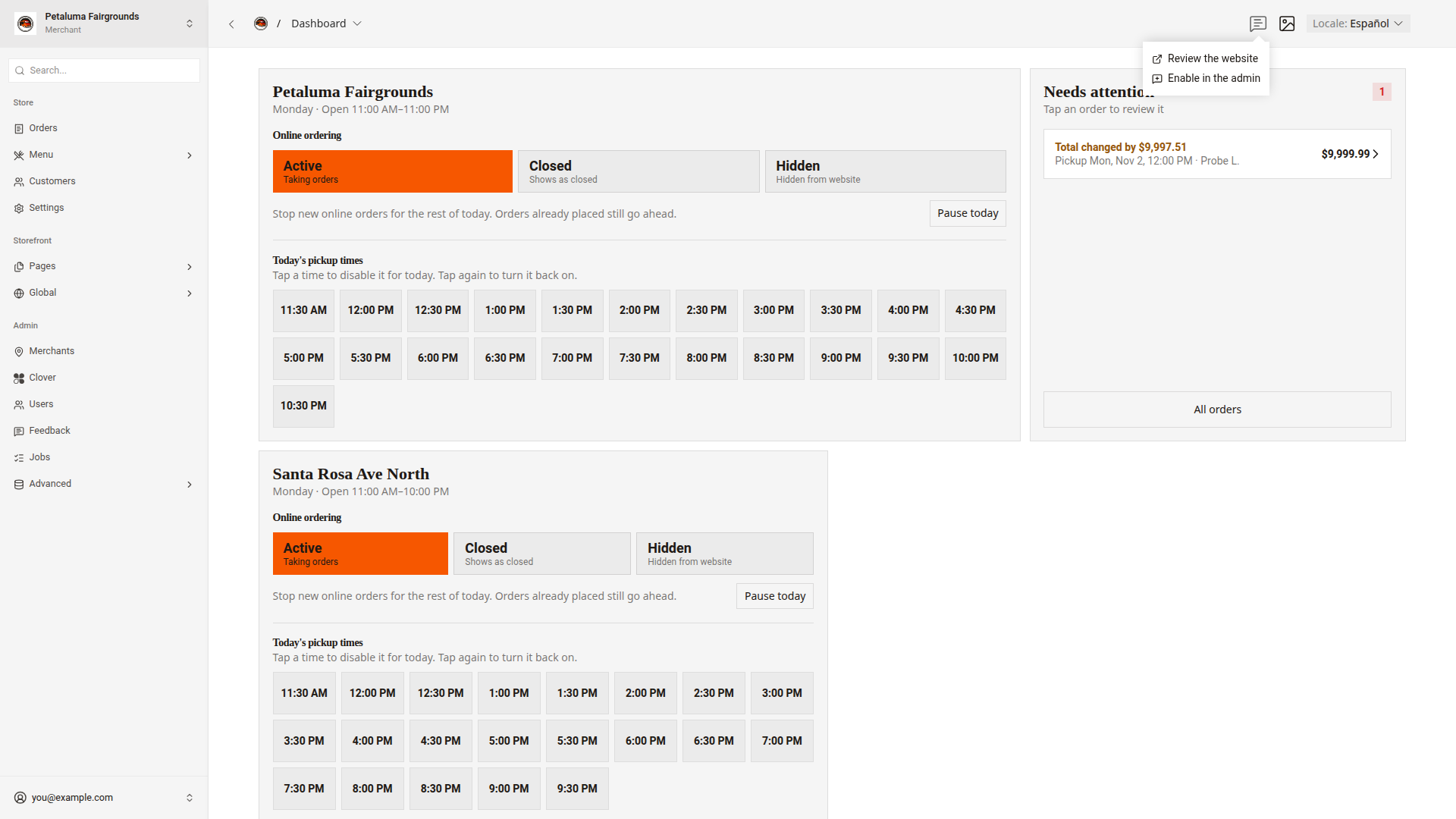
Turn on feedback
- In the header, click the speech bubble icon,
Leave feedback. - Click
Enable in the admin.
A round dark button appears in the lower-right corner of the dashboard. Feedback stays on in this browser for 12 hours.
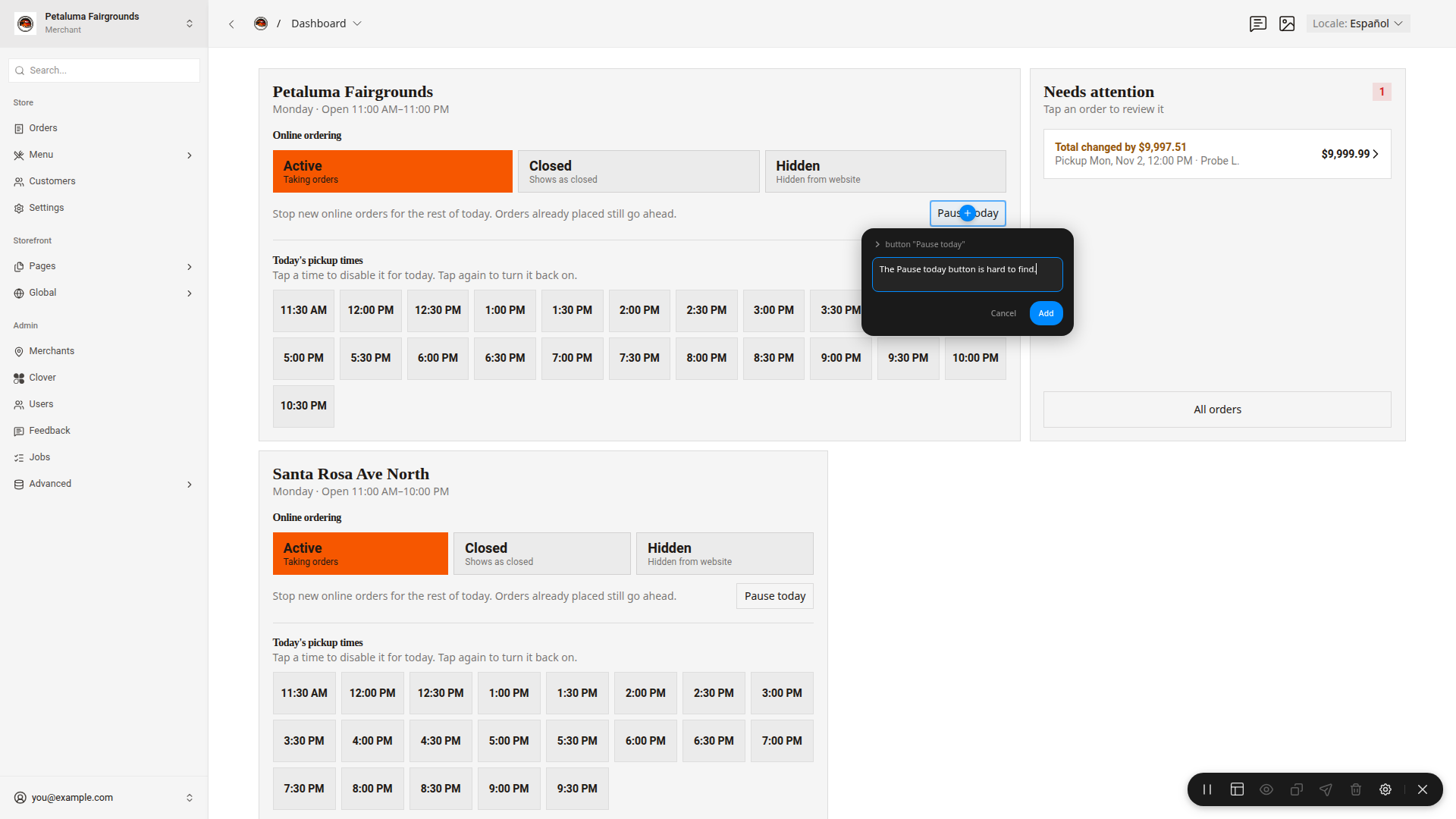
Leave a comment
- Click the round button in the lower-right corner. A toolbar opens.
- Click the part of the screen that needs a comment.
- Type your comment in the box.
- Click
Add. - Optional: To add another comment, click another part of the screen.
- In the toolbar, click the paper plane icon,
Send Annotations.
After the dashboard saves the comments, the comments clear from the screen.
Turn off feedback
- To close the toolbar, click the X icon at the right end of the toolbar, or press Esc.
- Click the speech bubble icon in the header.
- Click
Disable in the admin.
Read feedback
- In the side menu, click
Admin > Feedback. - Click a row to open it.
Each row shows the screenshot, the comment, the page, the part of the screen, who sent it, and when.
Good to know
- While the toolbar is open, a click adds a comment. The click does not press the button under it. Close the toolbar to use the dashboard again.
- If a message shows "Feedback did not save.", send the comments again.
- If a message starts with "Feedback saved without a screenshot:", the feedback has no screenshot.
Review the websiteopens the website, but the feedback toolbar does not show there. Leave feedback in the dashboard only.