Find your way
Use the store switcher, the side menu, the dashboard home, and the header buttons.
Use this page when you cannot find a screen or a button. The dashboard has a side menu on the left, a header at the top, and your work in the middle.
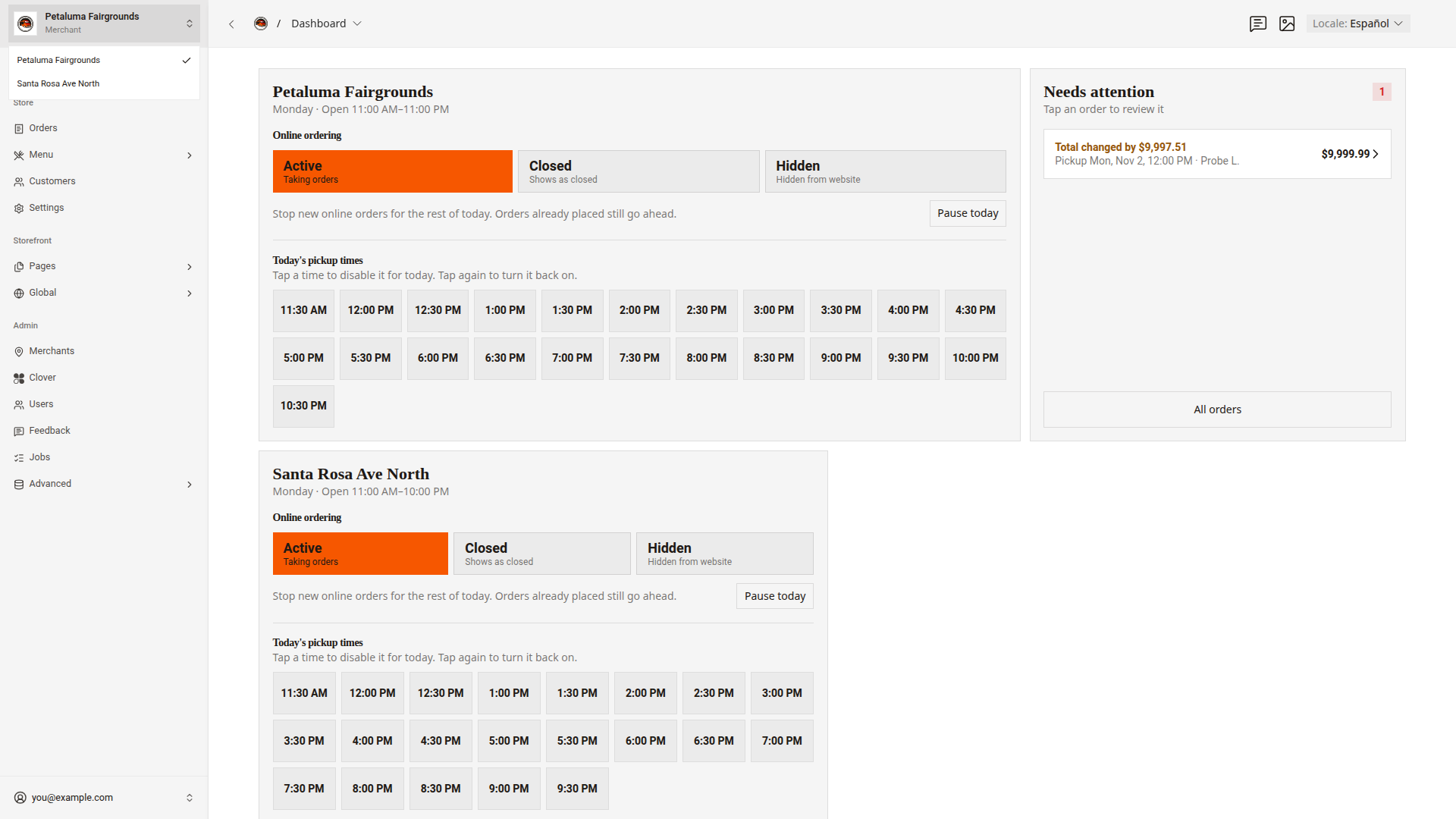
Choose a store
The store switcher at the top of the side menu shows the store you work on. The word Merchant shows under the store name. Orders, Menu, and Settings show data for this store only.
- Click the store name at the top of the side menu.
- Click a store in the list.
A check mark shows the store you chose.
Use the side menu
The side menu has three groups.
| Group | Items | Use it to |
|---|---|---|
Store | Orders, Menu, Customers, Settings | Run the store you chose |
Storefront | Pages, Global | Edit the website's homepage, header, and footer |
Admin | Merchants, Clover, Users, Feedback, Jobs, Advanced | Manage stores, the Clover connection, people, and feedback |
To find a screen fast, type part of its name in the Search... box at the top of the side menu.
Read the dashboard home
The dashboard home opens after you sign in. To come back to it, click the El Roy's logo at the top left of the header.
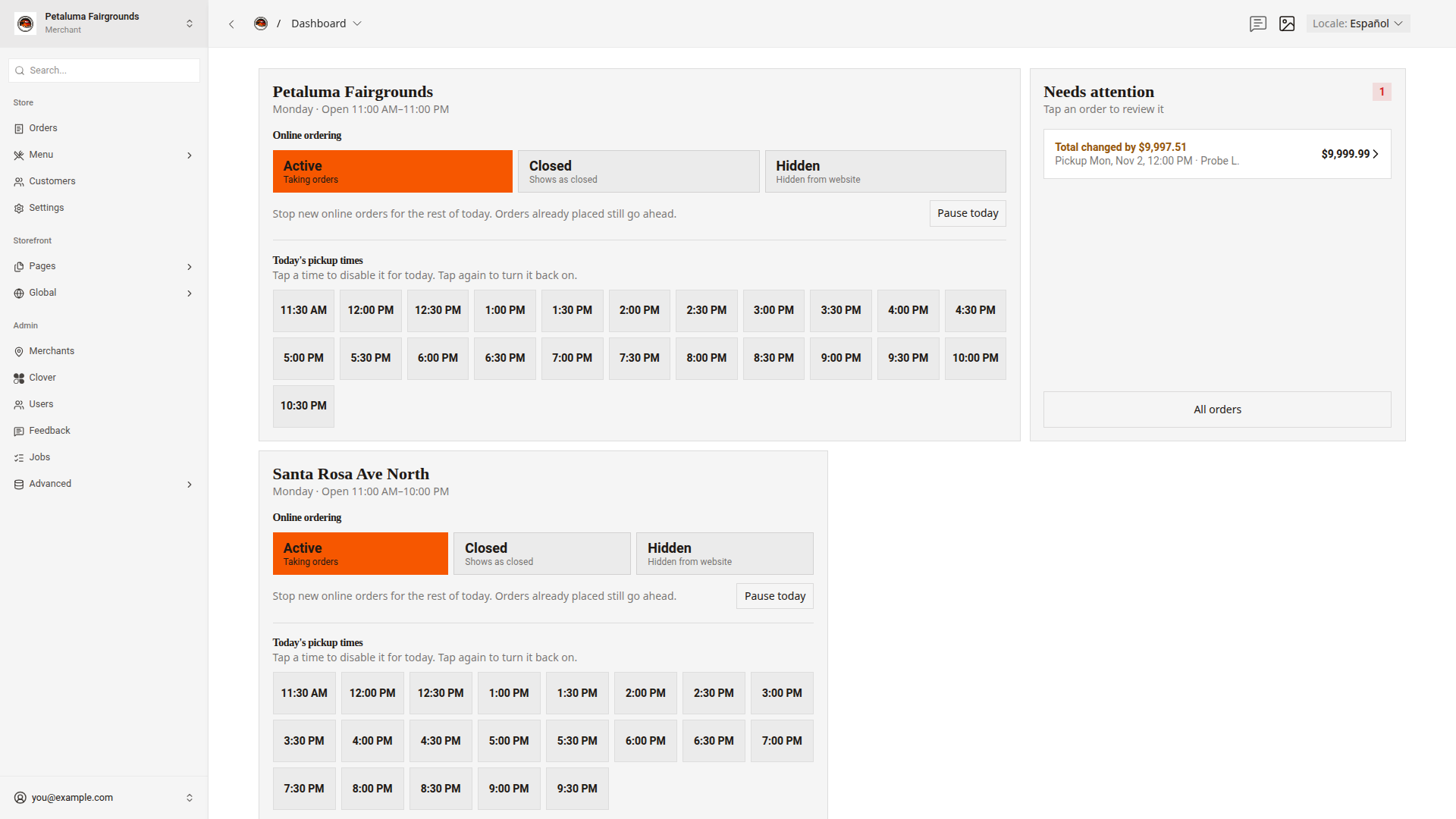
- A card for each store shows if the store takes online orders, the
Pause todaybutton, andToday's pickup times. Open, close, or pause a store shows how to use the card. Needs attentionlists today's failed and flagged orders. Handle orders that need attention explains each alert.Menu availabilityis below the store cards. UseMenu availabilityto hide menu items at one store. Turn menu items off and on shows how.
Use the header buttons
The header has three buttons on the right.
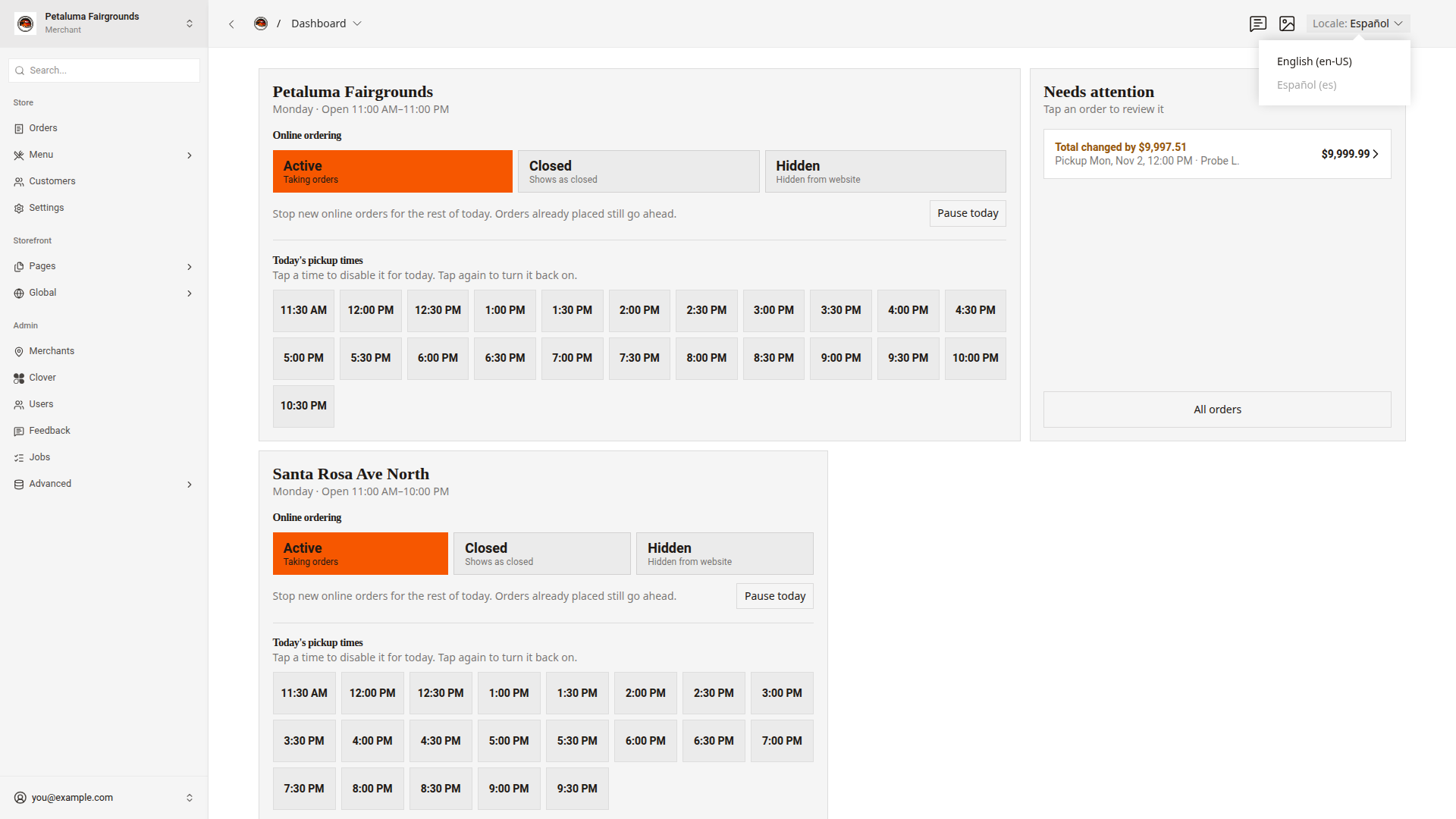
- The speech bubble icon,
Leave feedback, saves a comment about a dashboard screen. Leave feedback shows how. - The picture icon,
Media, opens every photo on the website. Manage photos shows how to use the photos. Localesets the language of the text you edit.
To edit the Spanish text of a page, switch Locale first.
- Click
Localein the header. - Click
Español (es)to edit Spanish text, orEnglish (en-US)to edit English text.
Open your account menu
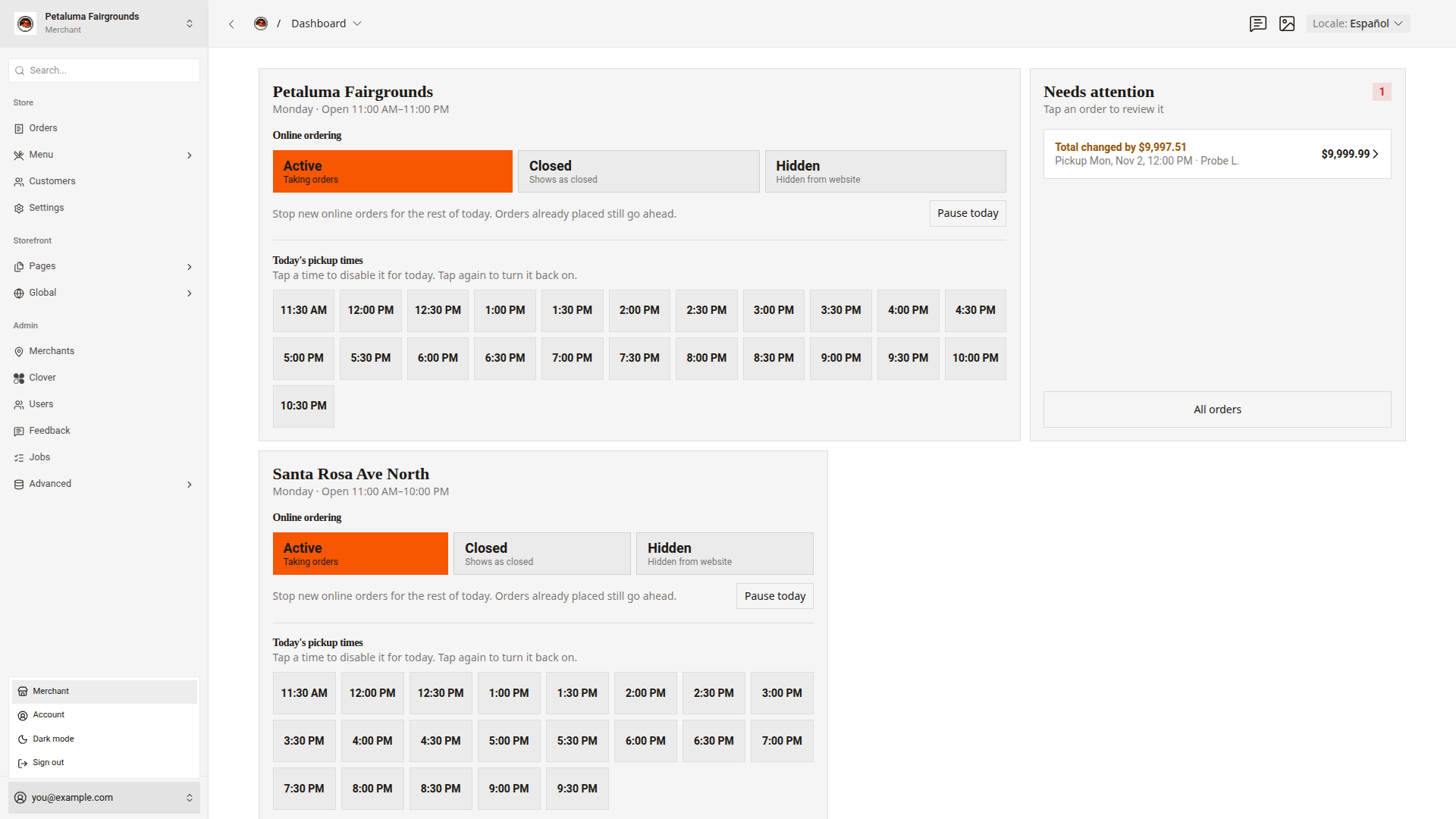
Your email address shows at the bottom of the side menu. Click your email address to open your account menu.
| Item | What it does |
|---|---|
Merchant | Opens the store record of the store you chose |
Account | Opens your sign-in details and your dashboard settings |
Dark mode | Switches the dashboard to dark colors |
Sign out | Signs you out of the dashboard |
Change the dashboard language
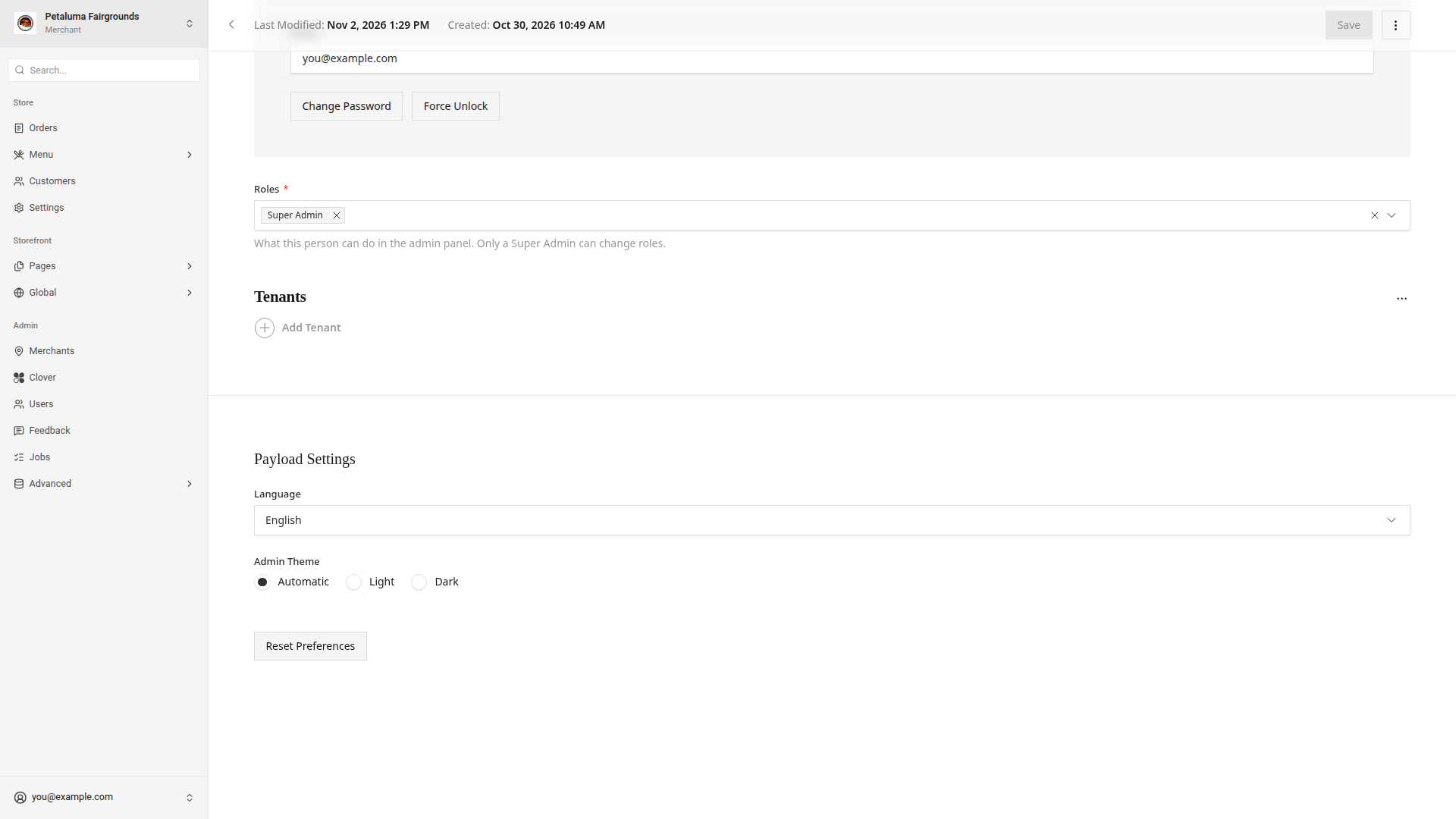
To see the dashboard's buttons and messages in Spanish, change the dashboard language.
- Click your email address at the bottom of the side menu.
- Click
Account. - Find
Payload Settingsnear the bottom of the page. - Choose a language in
Language.
Admin Theme in Payload Settings sets light or dark colors.
Good to know
- You cannot switch stores while a record is open, except a store record. Go back to the list first.
- The labels that El Roy's added stay in English, even when the dashboard language is Spanish.
- The dashboard shows dates and times in Pacific Time.
JobsandAdvancedare for troubleshooting. Do not change them unless a developer asks you to.