

Set ordering times
Set the prep time, how many days ahead customers can order, and the online-order hours.
Use the store record's Ordering tab to change the kitchen's prep time, how many days ahead customers can order, or the hours for online orders. The website uses a change as soon as you click Save.
- Click
Admin > Merchantsin the side menu. - Click the store.
- Click the
Orderingtab.
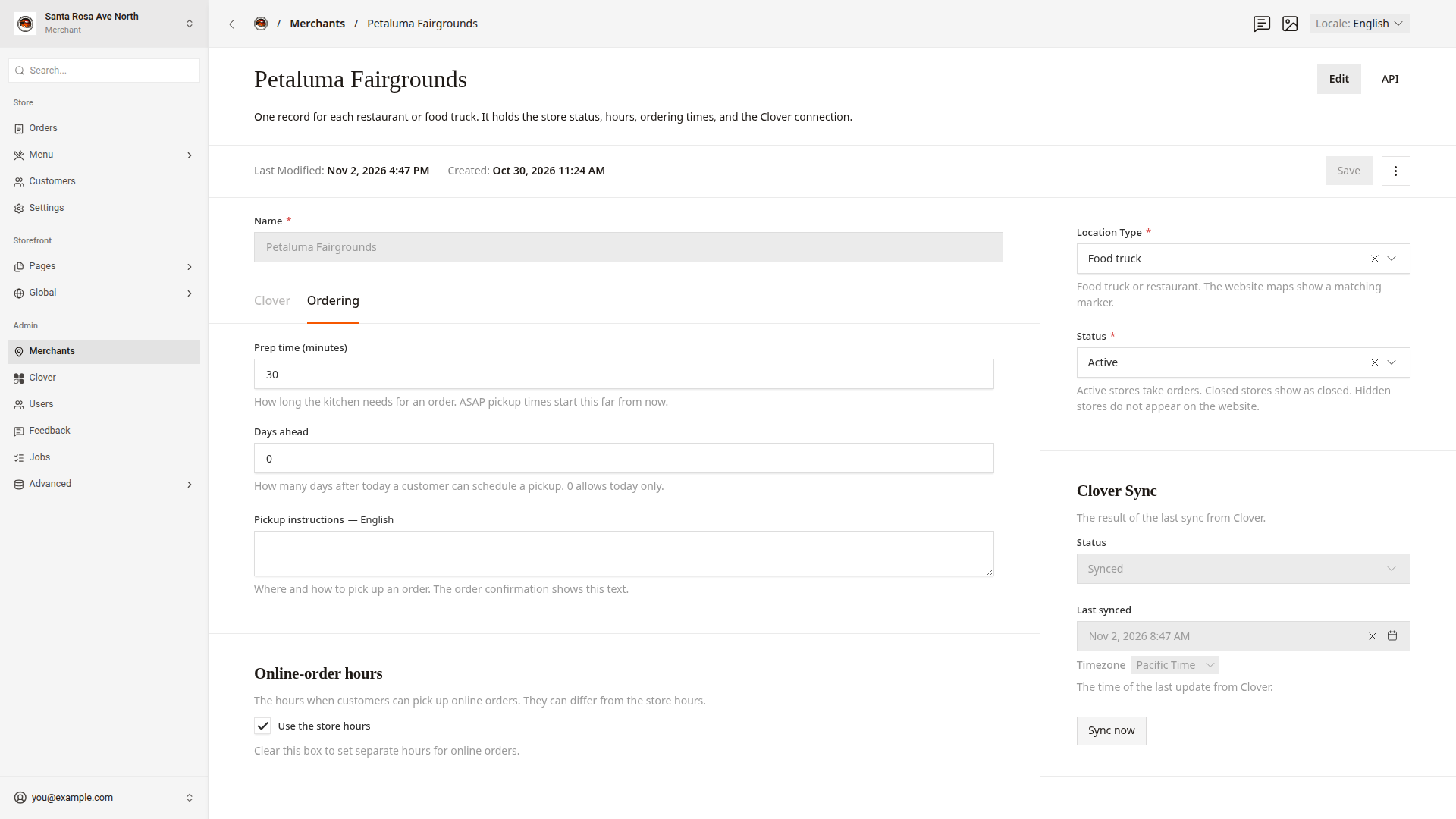
Set the prep time
Prep time (minutes) is how long the kitchen needs for an order. The default is 30.
- Type the minutes in
Prep time (minutes). Use steps of 5, from 0 to 240. - Click
Save.
The prep time sets these times:
- An ASAP order's pickup time is the payment time plus the prep time.
- Today's first pickup time is now plus the prep time, rounded up to :00 or :30. For example, at 11:10 with a prep time of 30, the first pickup time is 12:00.
- Before online orders open, the first pickup time is the opening time plus the prep time, rounded up the same way.
- Clover prints a scheduled order's kitchen ticket at the pickup time minus the prep time.
Let customers order ahead
Days ahead sets how many days after today a customer can schedule a pickup.
- Type a number from 0 to 7 in
Days ahead. 0 allows today only. - Click
Save.
For example, with 2, a customer on Monday can choose a pickup on Monday, Tuesday, or Wednesday.
Set online-order hours
By default, Use the store hours is on, and online orders follow the store's hours in Clover. Set separate hours to take online orders at other times. For example, you can stop online orders 1 hour before the store closes.
- Under
Online-order hours, clearUse the store hours. A list of weekdays shows, fromSundaytoSaturday. - Under the weekday, such as
Monday, clickAdd Window. - Choose the
OpenandClosetimes. - Repeat steps 2 and 3 for each weekday.
- Click
Save.
To take no online orders on a weekday, leave that weekday without a window. To take online orders until midnight, choose 00:00 in Close.
Turn off pickup times on one weekday
Use Weekly schedule when a pickup time must stay off on the same weekday every week, such as Sunday lunch.
- Under
Weekly schedule, find the weekday. - Click
Disabled pickup timesunder the weekday. The pickup times for that weekday show. - Click each pickup time to turn off. The time shows
Disabled. - Click
Save.
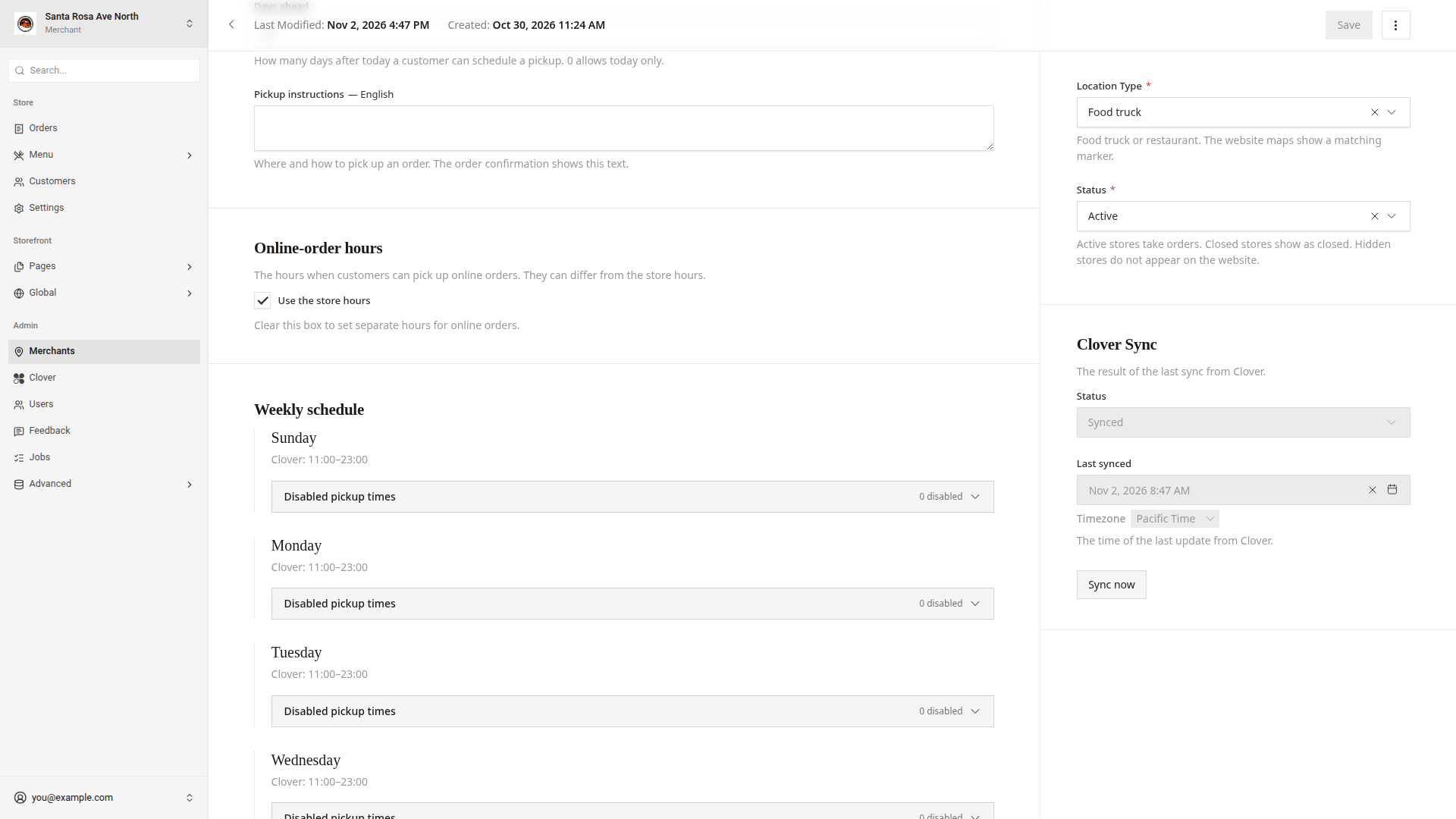
Each weekday shows its Clover hours, such as Clover: 11:00–23:00. The Disabled pickup times line shows how many times are off, such as 2 disabled.
Write pickup instructions
Pickup instructions tell customers where and how to pick up an order, such as "Pick up at the side window." The order confirmation shows this text.
- Type the text in
Pickup instructions. Use up to 500 characters. - Click
Save. - In the header, switch
LocaletoEspañol (es). - Type the Spanish text in
Pickup instructions. - Click
Save.
Good to know
- Disabled pickup times affect scheduled pickups. ASAP orders remain available while the kitchen has time to prepare them before closing.
- Customers can book a scheduled pickup before online-order hours open.
Days aheadalso allows bookings for later days. - Pickup times come every 30 minutes. The last pickup time is 30 minutes before online orders close.
- In
Weekly schedule, a time that showsLockedis off every day inSettings. To turn the time back on, useSettings. - To turn off a time for today only, use the store card on the dashboard home. Turn off pickup times shows how.
- To turn off a time on every day, use
Settings. Store settings shows how. - The store hours come from Clover. To change the store hours, change them in Clover.