
Store details
Check the store details that come from Clover, and fix the store's pin on the website map.
Open the store record to check the address, hours, and time zone that Clover sends. You also use the store record to move the store's pin on the website map. To change the prep time or the online-order hours, use Set ordering times.
Open the store record
- Click
Admin > Merchantsin the side menu. - Click the store.
You can also click your email address at the bottom of the side menu, then click Merchant. Merchant opens the record for the store in the store switcher.
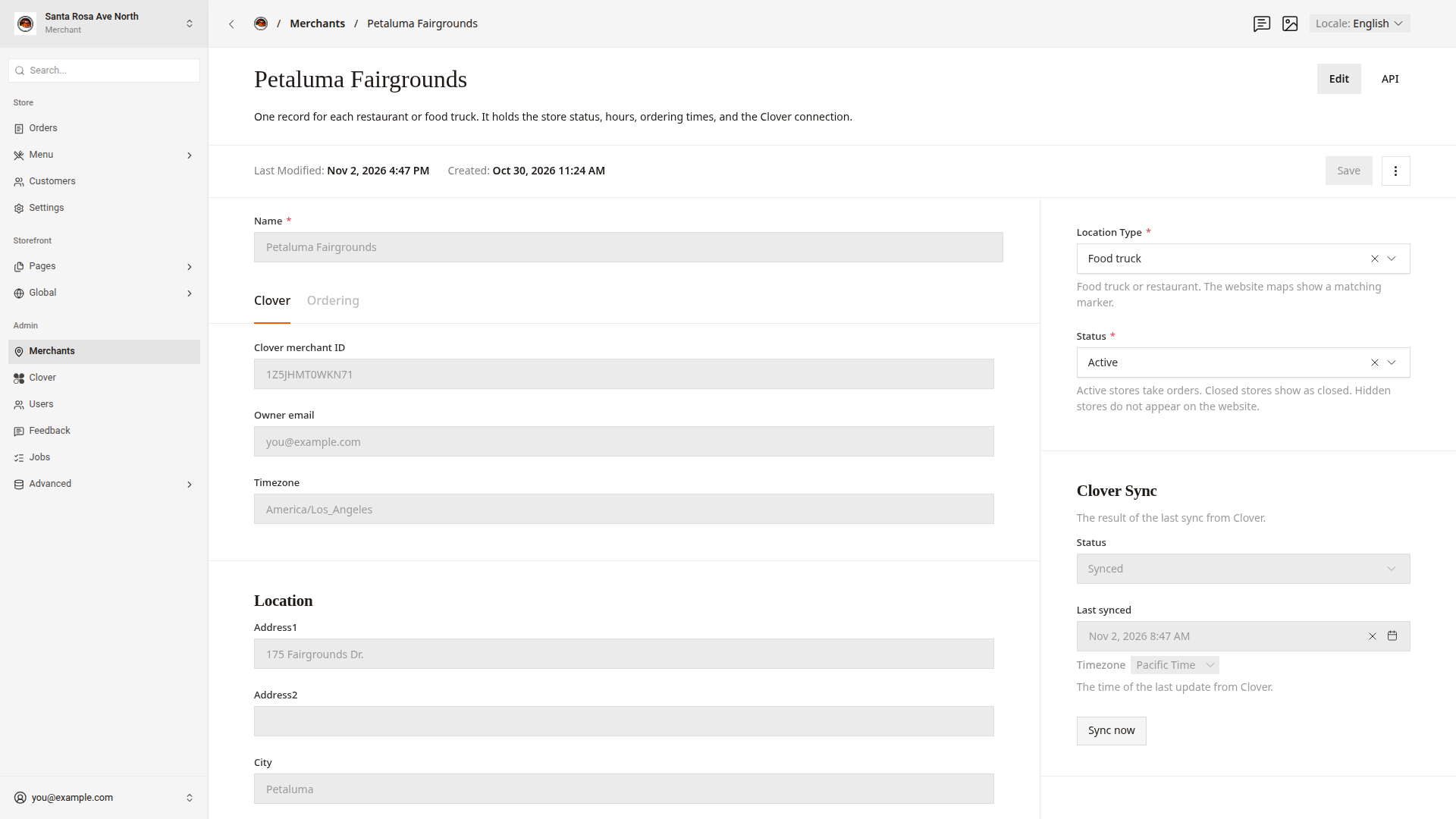
The record has two tabs.
| Tab | What it holds |
|---|---|
Clover | The details from Clover: Clover merchant ID, Owner email, Timezone, Location, Coordinates, Hours, and OAuth connection |
Ordering | Prep time (minutes), Days ahead, Pickup instructions, Online-order hours, and Weekly schedule |
On the right, Location Type shows Food truck or Restaurant. The website map shows a food truck marker or a restaurant marker to match. Status shows Active, Closed, or Hidden. The buttons on the store card on the dashboard home change the same Status.
Change details in Clover
The store's name, address, phone number, hours, and time zone come from Clover. On the Clover tab, the boxes for these details are gray. You cannot type in them.
- In Clover, change the name, the address, the phone number, or the hours.
- In the store record, under
Clover Sync, clickSync now.
A message shows "Clover sync queued." To see the new details, reload the page after the sync. Last synced under Clover Sync shows the time of the last update from Clover.
Fix the map location
The dashboard places the store's pin on the website map from the store's address. If the pin is in the wrong place, move the pin.
- Open the store record.
- On the
Clovertab, underCoordinates, clickPick on map. ThePick locationpanel opens with a map. - Click the store's place on the map. You can also drag the pin.
- Close the
Pick locationpanel with the X button at the top. - Click
Save.
To put the pin back where the dashboard placed it from the address, click Reset to detected location. Then click Save.
Good to know
- The store's
Timezonesets when the store's day starts and ends. For example, a pause ends at midnight in this time zone. - If
OAuth connectionshows "Needs re-authorization", reconnect the store to Clover. Connect a store to Clover shows how. Merchantshas no button to add a store. A store appears inMerchantsafter you connect the store to Clover.