

Edit the website
Change the homepage category order, the notification bar, and the footer.
Use the Storefront screens to change the website text that is not part of the menu, such as the homepage title and the footer. A change shows on the website for every store as soon as you click Save.
| Side menu item | What you edit |
|---|---|
Pages > Homepage | The homepage's large title, subtitle, and photo, and the order of the menu categories |
Global > Header | The notification bar at the top of every page |
Global > Footer | The large text above the order button, the social links, and the policy links at the bottom of every page |
To edit the Spanish text, switch Locale in the header to Español (es) before you type.
Set the homepage category order
- Click
Storefront > Pages > Homepagein the side menu. - Scroll down to the
Menusection. - Click in
Display Orderand pick the categories in the order that you want. - Drag the categories to change the order.
- Click
Save.
Categories that you do not list follow in name order.
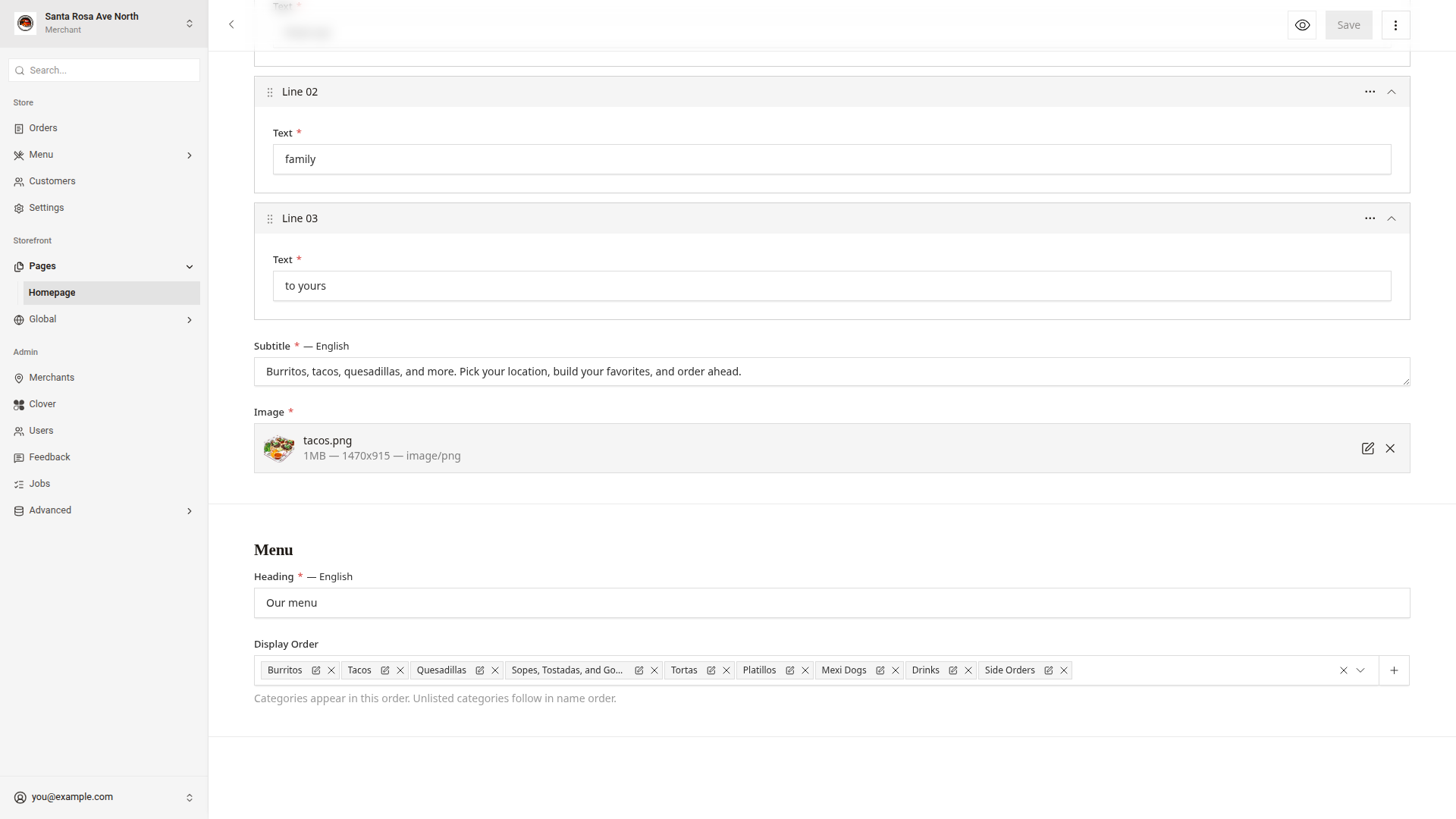
On the same screen, the Hero section sets the homepage's large title, Subtitle, and Image. Each Text box under Headline is one line of the large title. Use 1 to 3 lines.
Show a notification bar
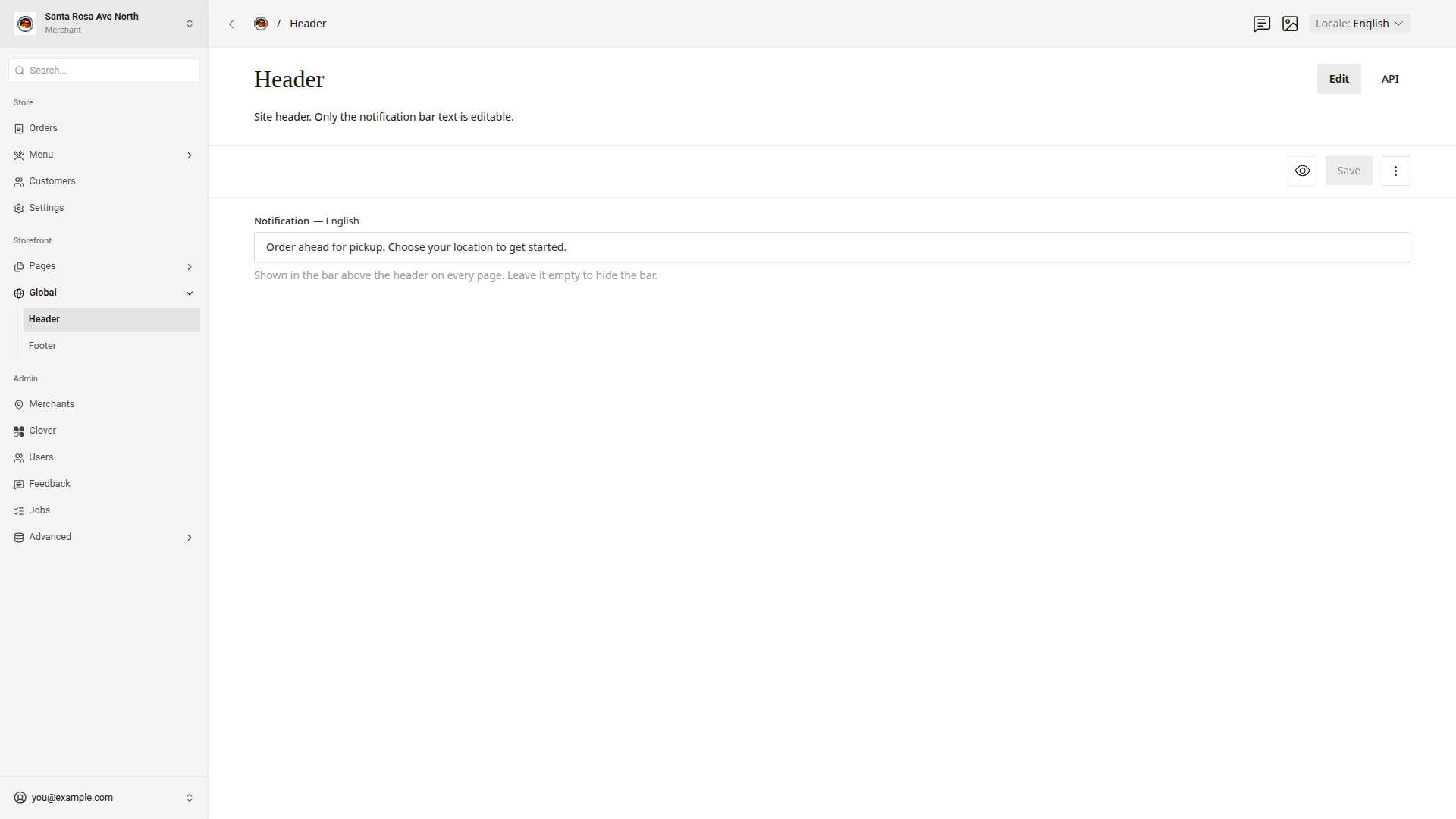
The notification bar is the colored bar above the header on every page. Use the bar for news such as "Closed on Thanksgiving".
- Click
Storefront > Global > Headerin the side menu. - Type the text in
Notification. - Click
Save.
To hide the bar, delete the text in Notification and click Save.
Edit the footer
- Click
Storefront > Global > Footerin the side menu. - Optional: Under
Headline, type the large text in theTextboxes. Use 1 to 3 lines. - Optional: Type the text below the large text in
Body. - Optional: To add a social link, click
Add Social linkunderSocial Links. - In the new row, choose the
Platformand type theUrl. - Optional: Type the full links in
Privacy policy linkandTerms link. - Click
Save.
| Footer box | What it shows |
|---|---|
Headline | The large text above the order button |
Body | Short text below the headline |
Social Links | Icons at the bottom of the footer, in the list order. Add up to 4 links, one for each platform: Instagram, Facebook, TikTok, and YouTube. |
Privacy policy link | A link at the bottom of the footer. Leave the box empty to hide the link. |
Terms link | A link at the bottom of the footer. Leave the box empty to hide the link. |
Each link must start with https://. If a link does not, the box shows "Enter a full link that starts with https://." after you click Save.
Good to know
- These screens have no draft. To check a change before you save it, click the eye icon,
Live Preview. - The homepage, the header, and the footer are the same for every store.
- To change the order of the items inside a category, edit the category. Edit categories shows how.