
Store settings
Turn off pickup times for every day, and set the item order at checkout.
Use Store > Settings to turn off pickup times on every day, or to set the order of the items on the checkout page. The settings apply only to the store in the store switcher.
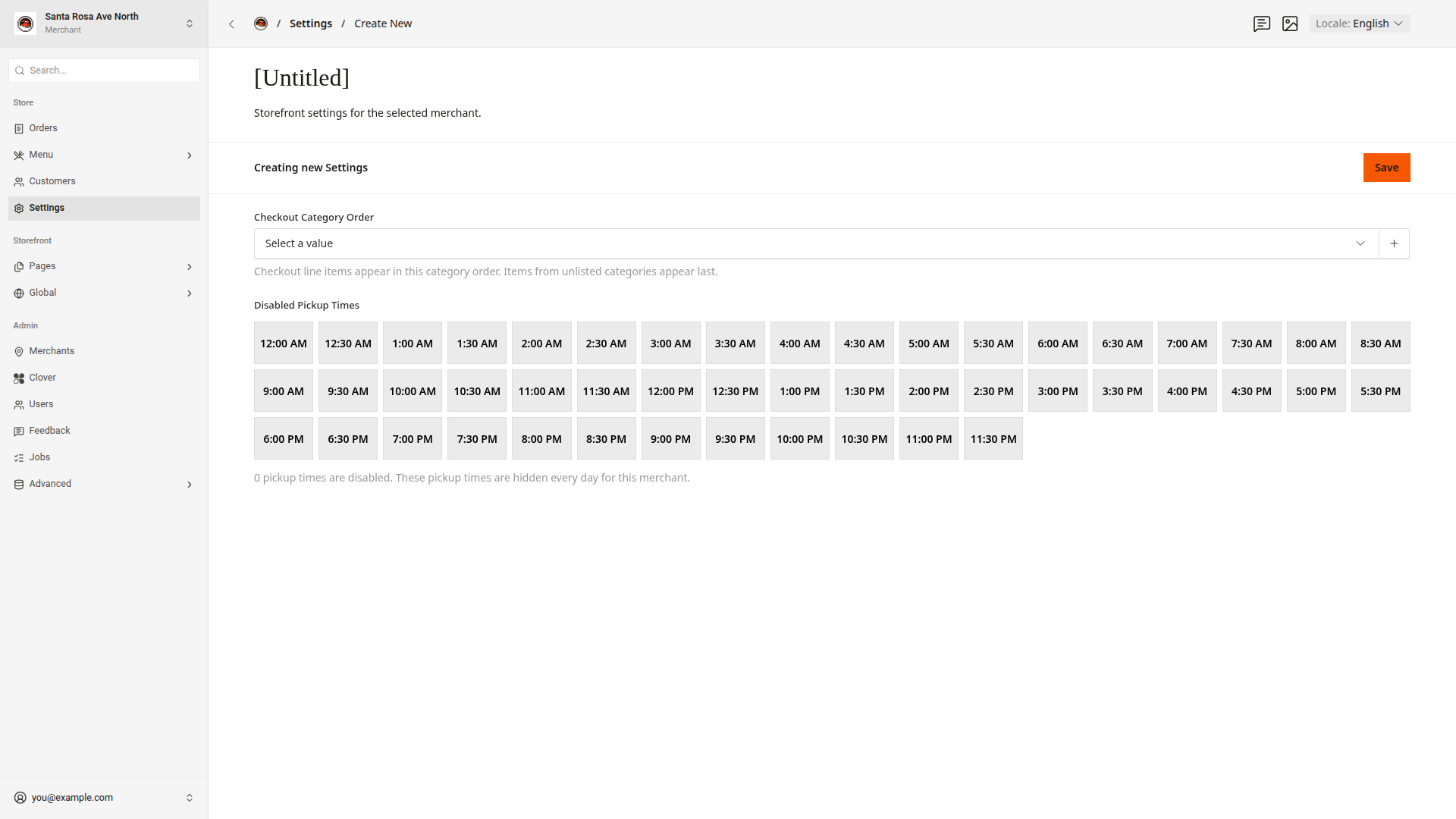
The first time that you open Settings for a store, the screen shows "Creating new Settings". Your first Save creates the store's settings.
Turn off pickup times every day
Use Disabled Pickup Times for pickup times that must stay off every day, such as the hour when the kitchen cleans.
- In the store switcher, choose the store.
- Click
Store > Settingsin the side menu. - Under
Disabled Pickup Times, click each time to turn off. The time showsDisabled. - Click
Save.
The line under the grid shows the count, such as "2 pickup times are disabled. These pickup times are hidden every day for this merchant." The website does not offer these scheduled times on any day. ASAP orders remain available.
Set the checkout order
Checkout Category Order sets the order of the items on the checkout page. The items show in the order of their categories in this list. For example, if Burritos comes before Tacos, a burrito shows before a taco.
- Click in
Checkout Category Orderand pick a category. - Pick more categories in the order that you want.
- Drag the categories to change the order.
- Click
Save.
Items from categories that you do not list show last.
Good to know
You can turn off pickup times in three places.
| Where | How long the time stays off |
|---|---|
| The store card on the dashboard home | Today only. Turn off pickup times |
Weekly schedule in the store record | On one weekday, every week. Set ordering times |
Disabled Pickup Times in Settings | Every day |