

Website
Forms
Build forms, add them to pages, and review submitted answers.
Build a form once. Then put it on a page and read the answers under Responses.
Build a form
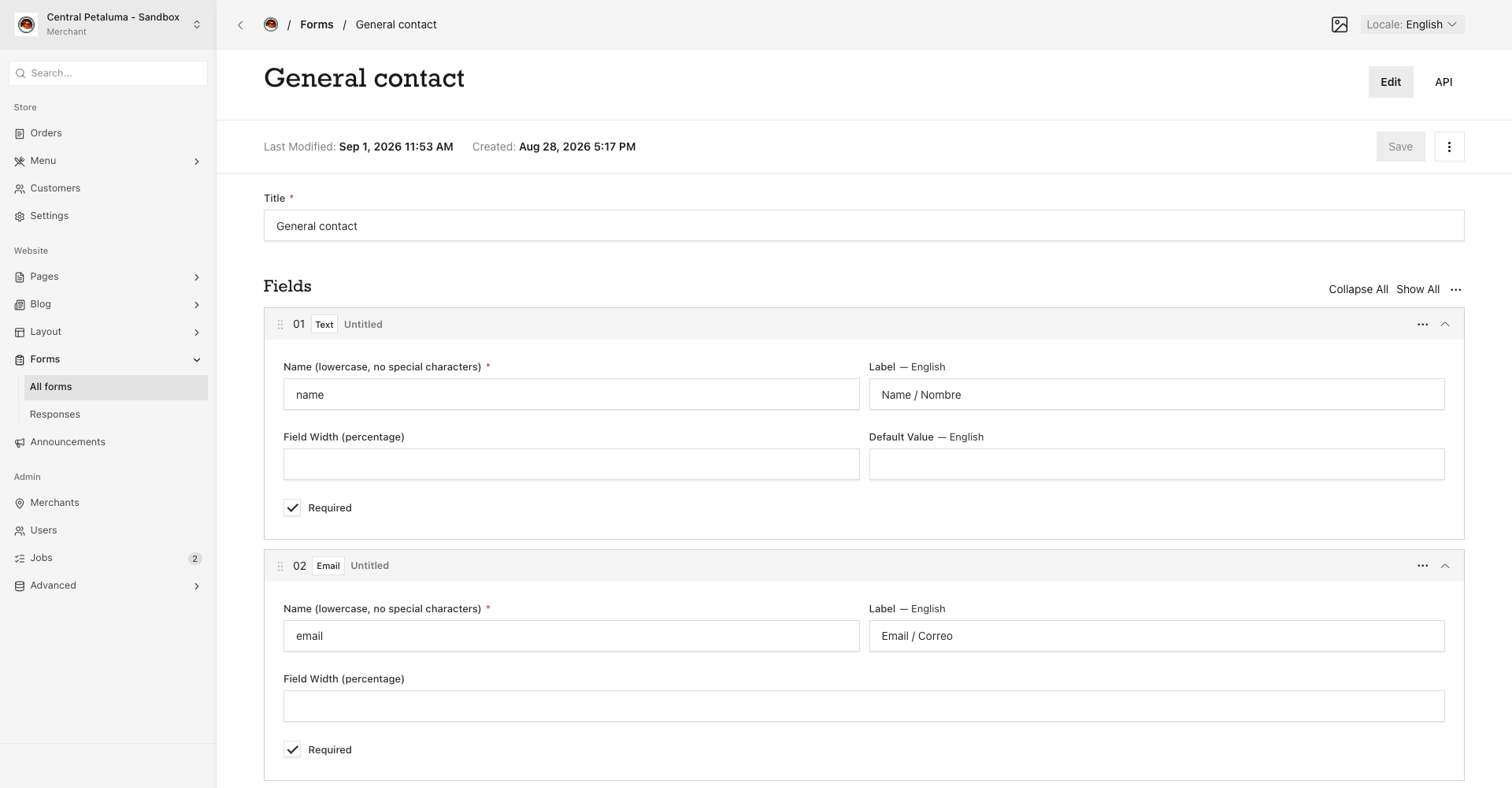
The question types available are Text, Textarea, Select, Radio, Email, Checkbox, Number, and Message.
- Open
Website > Forms > All forms. - Create a form or open an existing form.
- Add boxes in the order visitors should complete them.
- Give each box a stable, unique name.
- Set the
Labelin both languages. Use theLocaleswitch for Spanish text. Set whether each box needs an answer, its default value, and the options where they apply. - Set the submit label and the confirmation message.
- Add email rows when the form must send email.
- Choose
Save.
Put the form on a page
Open an All pages page, add a Contact block, and choose the form you saved.
Good to know
A Message block only shows text and does not collect answers. An answer can save even if you do not add an email row. A success message on the page does not prove email went out. Choose Message, not Redirect, because the website only shows a message and does not send a redirect.