

Website
Layout
Manage the site-wide header and footer.
The header and footer show on every page. Use Website > Layout in the sidebar to edit them.
Edit the header
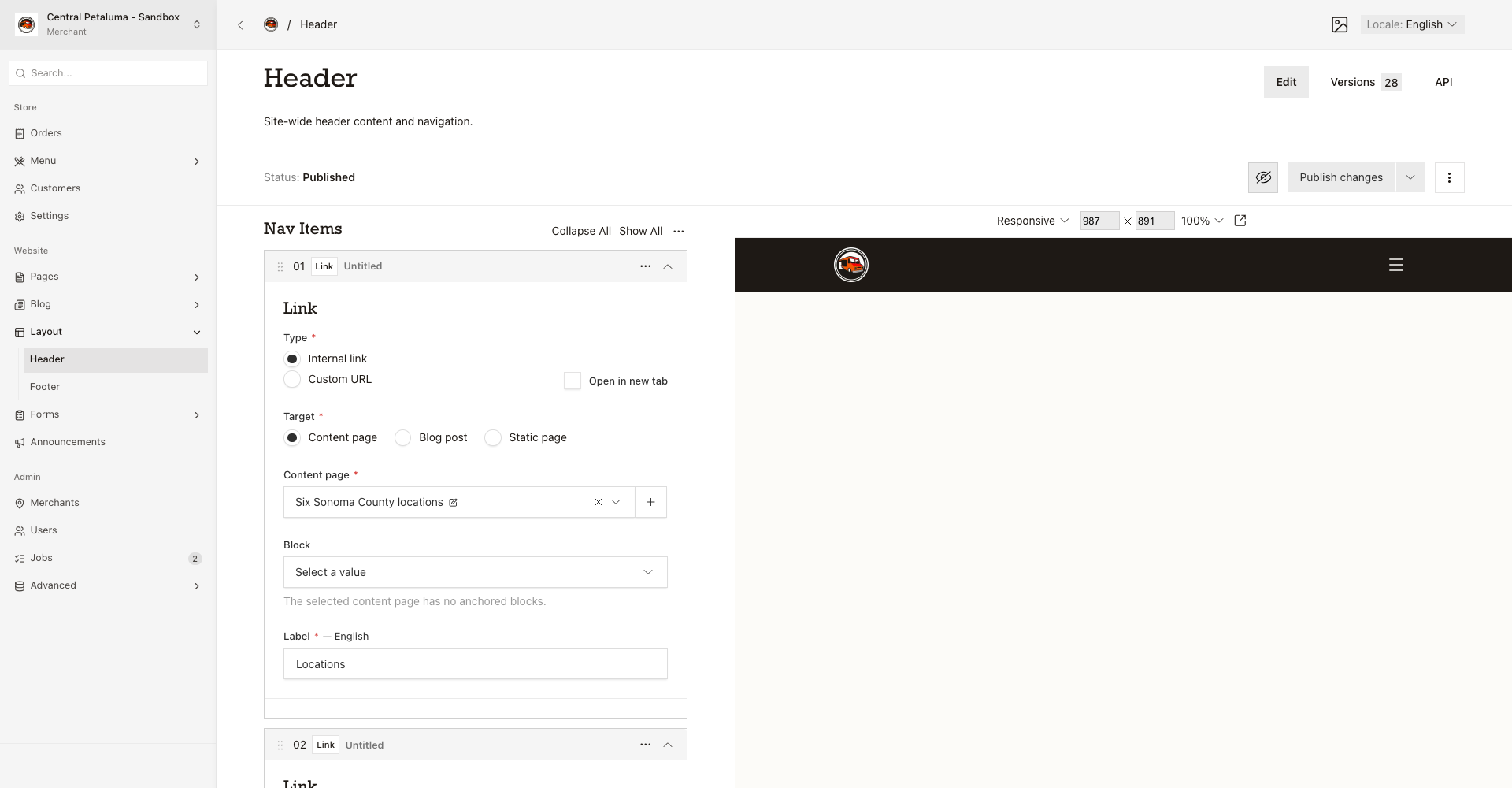
The header holds the navigation links that show on every page.
- Open
Website > Layout > Header. - Reorder the navigation links to set their display order.
- Edit each
Labelbox. Use theLocaleswitch for Spanish text. - Choose
Internal linkto point at a page, post, or section. Then choose the target. - Choose
Custom URLto point at an outside website. Then enter the address. - Add a block anchor when the destination page has one.
- Choose
Open in new tabwhen the link should open in a new browser tab. - Open
Live PreviewbeforePublish changes. - Choose
Publish changes.
Edit the footer
The footer shows at the bottom of every page. It holds the tagline, navigation, grouped navigation, a callout, social links, and legal text.
- Open
Website > Layout > Footer. - Edit each section. Use the
Localeswitch for Spanish text. - Open
Live PreviewbeforePublish changes. - Choose
Publish changes.
Good to know
A draft does not change the public header or footer. When you delete a page, the link that pointed at it also disappears. If you change the web address of a page you link to, a custom URL does not follow the change.