

Pages
Create and manage pages that customers see on the website.
Website > Pages holds the home page, the location pages, and every other page. You write the text and pictures customers read, and you control when they go live.
Homepage
The home page has four sections that the code fixes in place, so you cannot add, remove, or reorder them.
The four sections are:
Home Hero- the headline, subtitle, and hero image.Menu- the menu introduction and the category order.Order CTA- a heading, tagline, and up to two buttons.Social Bento- a heading, handle, tile images, and the Instagram link.
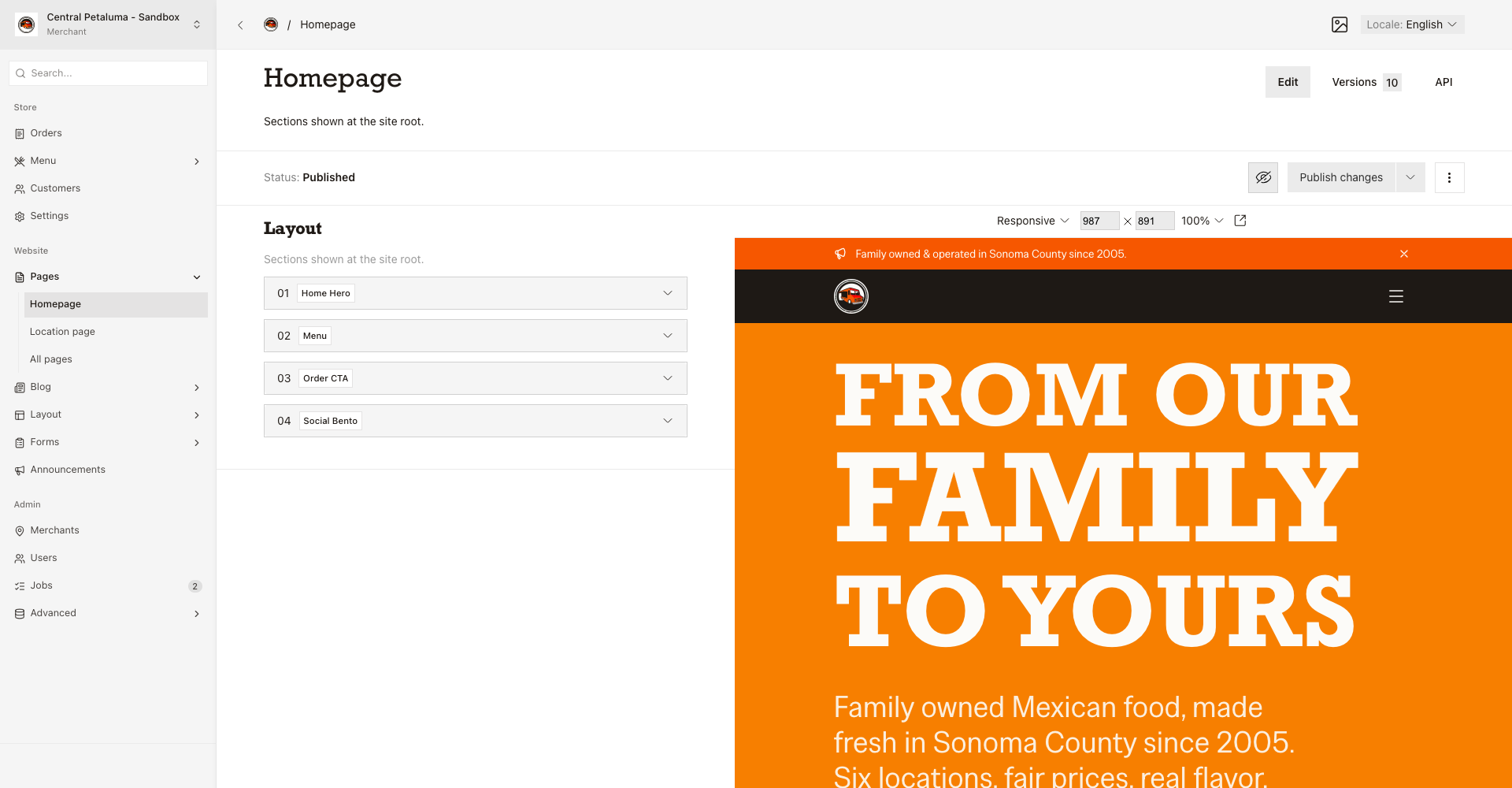
Each section has a Content tab for text and pictures, and a Block settings tab for spacing and the section anchor.
- Open
Website > Pages > Homepage. - Open a section.
- Edit the
NameandDescriptionboxes. Use theLocaleswitch for Spanish text. - Check the result in
Live Preview. - Choose
Publish changes.
A header link can point at one of these sections. Choose Static page as the target, then choose the section under Block.
Location page
One page appears for each location, and the location switcher decides which one opens. The website serves it at /location/ plus the web address you set.
The page has four sections that the code fixes in place. Above them, the page holds the title, publish time, and thumbnail. The thumbnail appears on location cards.
The four sections are:
Location hero- heading, intro, image, address, and phone. These values replace the values on the location itself.Location map- custom location. The coordinates replace the location coordinates on the map marker.Visit panel- heading, intro, up to six highlights, and up to seven hours. Hours override the location hours for that day. Times use 24-hourHH:MMformat.All locations- which locations show as cards, in this order. Leave empty to show every published location.
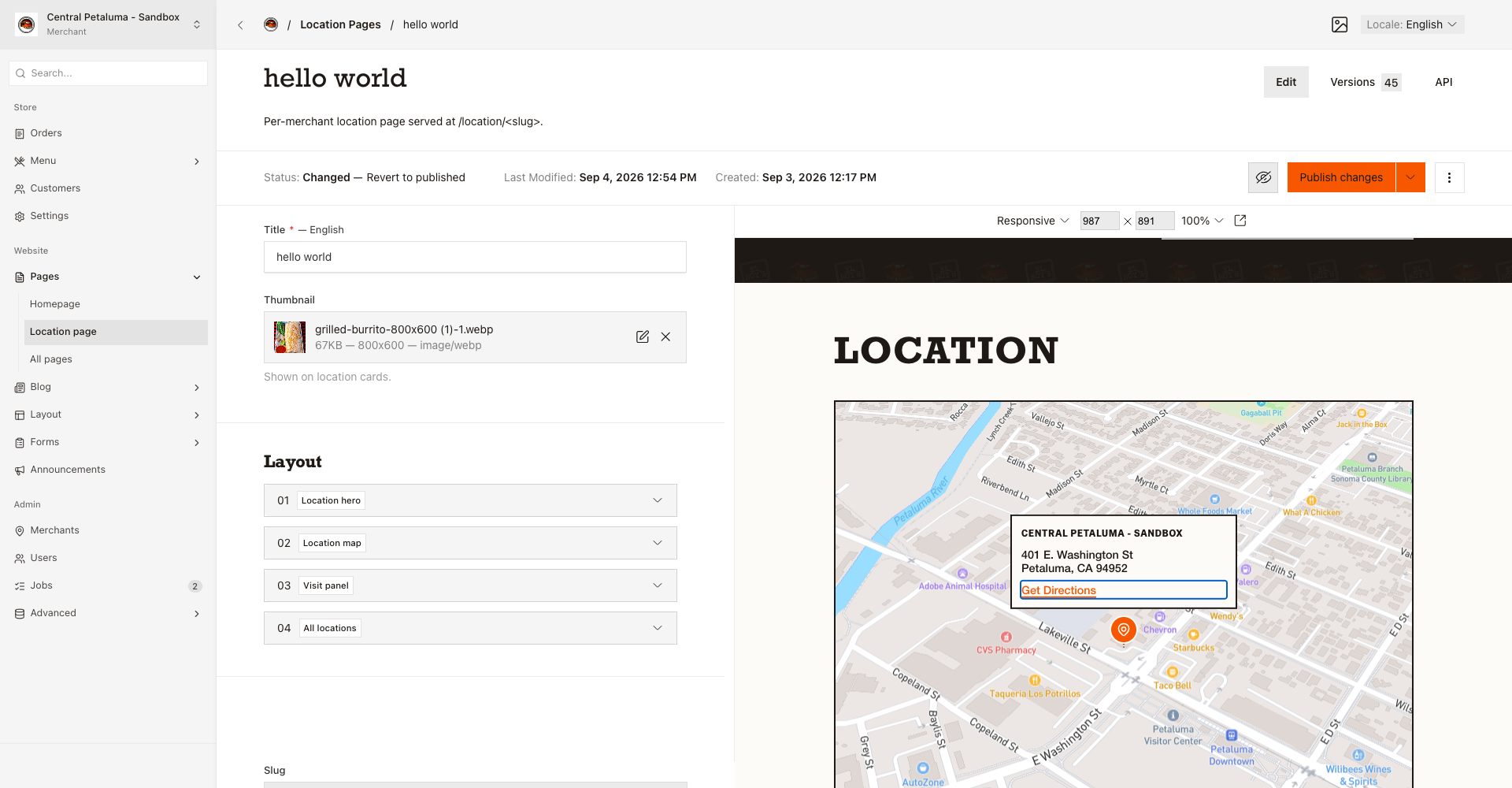
- Choose the location in the location switcher.
- Open
Website > Pages > Location page. - Edit the
Titleand section boxes. Use theLocaleswitch for Spanish text. - Leave a box empty to keep the location value.
- Check the result in
Live Preview. - Choose
Publish changes.
All pages
Every other page sits here. You give it a web address, and it lists the blocks it supports: Contact, Home Hero, Location Finder, Menu, Order CTA, Page Hero, Rich Text, and Social Bento.
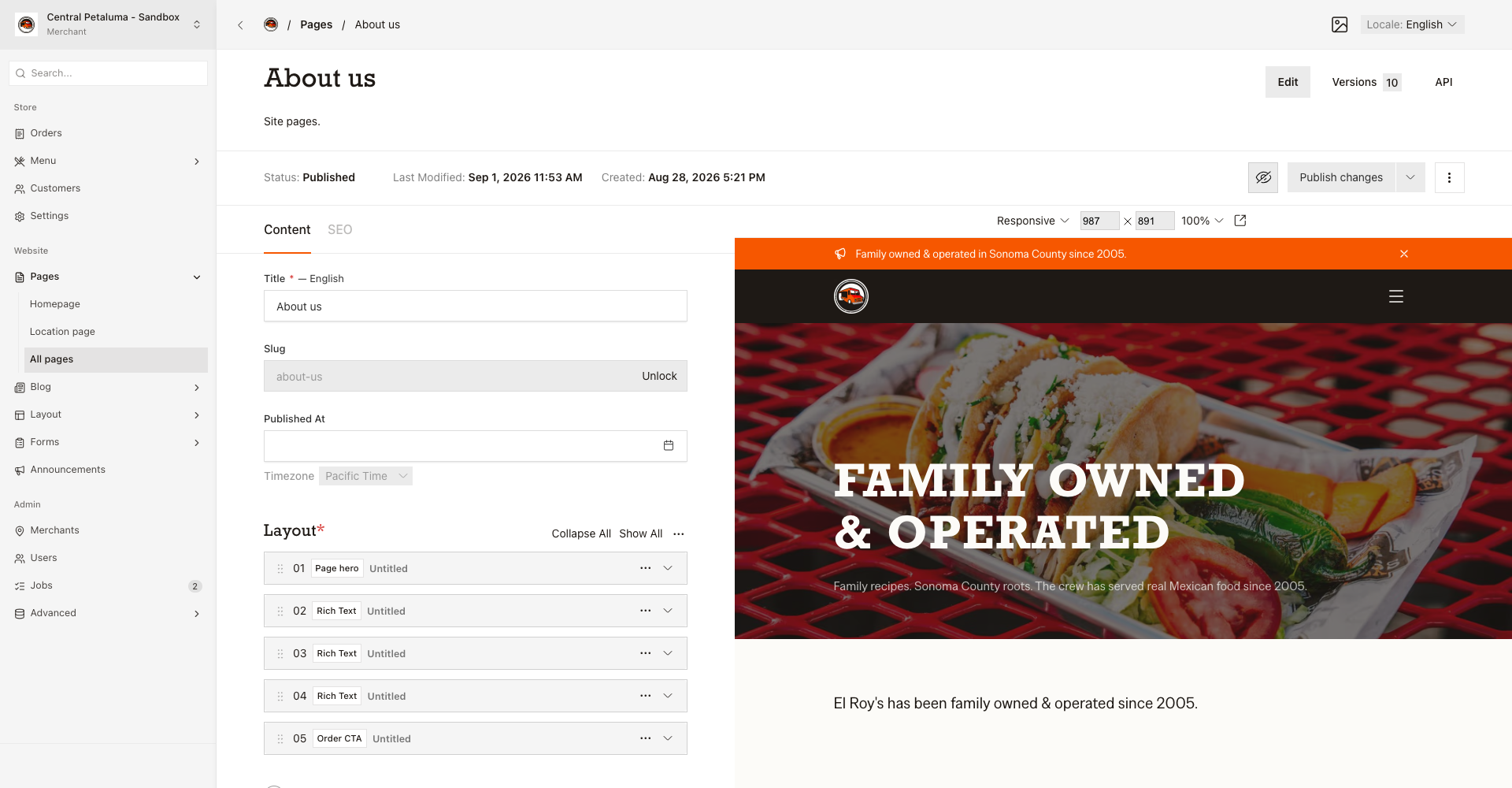
- Open
Website > Pages > All pages. - Create a page or open an existing page.
- Edit the
Titleand block content. Use theLocaleswitch for Spanish text. - Reorder blocks to change their page order.
- Use
Block settingsto set spacing and anchors. - Check the
SEOtab before you publish. - Open
Live Previewto check the page. - Choose
Publish changes.
Publish and preview
Leave Published At empty to use the first publish time. A draft stays off the public site. If you do not write Spanish text, the website shows the English text instead.
Web address breaks links
Good to know
A draft does not change the public website. When you delete a page, the link that pointed at it also disappears. You link to a page from the header or the footer. If you change the web address of that page, the link does not follow the change.