
Edit categories
Set how customers order from a category and the order of its items.
A category is a menu section, such as Burritos. Clover sets which items are in a category. The dashboard sets how customers order from the category and the order of its items.
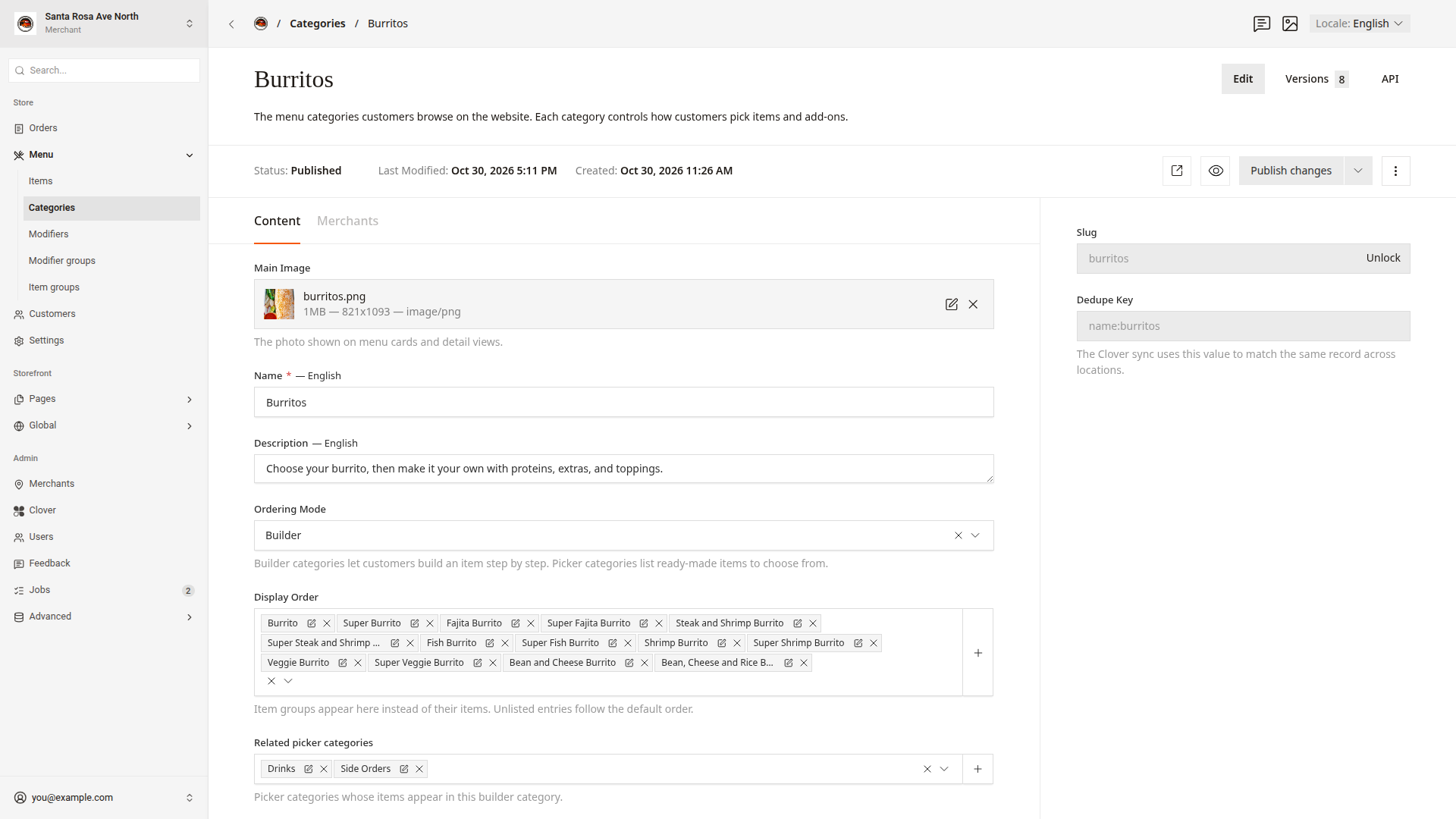
Choose Builder or Picker
Ordering Mode sets how customers order from the category.
Ordering Mode | What customers do | Good for |
|---|---|---|
Builder | Build an item step by step: protein, ingredients, extras, and sides | Burritos, tacos, and other dishes with choices |
Picker | Pick ready-made items from a list | Drinks and sides |
- Click
Menu > Categoriesin the side menu. - Click the category to open it.
- Choose
BuilderorPickerinOrdering Mode. - Click
Publish changes.
Set the item order
Display Order sets the order of the items on the category page.
- In
Menu > Categories, open the category. - Click in
Display Orderand pick an item or an item group. - Drag the entries into the order that you want.
- Click
Publish changes.
Display Order lists only the items and item groups that are in the category in Clover. An item group shows here instead of its items. Entries that you do not pick show after the picked ones: item groups by name, then items from the lowest to the highest price.
Add related picker categories
A builder category can also show items from a picker category, such as drinks and sides on the Burritos page.
- In
Menu > Categories, open a builder category. - Click in
Related picker categoriesand pick a category. - Click
Publish changes.
You can only pick categories that use Picker. A category cannot relate to itself.
Publish a category
The dashboard saves a category draft about every 1.5 seconds while you type. The website shows a change only after you click Publish changes.
Statusat the top showsPublishedwhen the website shows the latest version.- The eye icon,
Live Preview, shows the draft before you publish it. - The arrow icon,
View live, opens the category on the website.
Drafts and publishing explains each Status value and how to restore a version.
Good to know
- To move an item to another category, change the item's category in Clover.
- If a category's
StatusshowsDraft, the website does not show the category or its items. - You set the order of categories on the homepage in
Storefront > Pages > Homepage. Edit the website shows how.