Categories
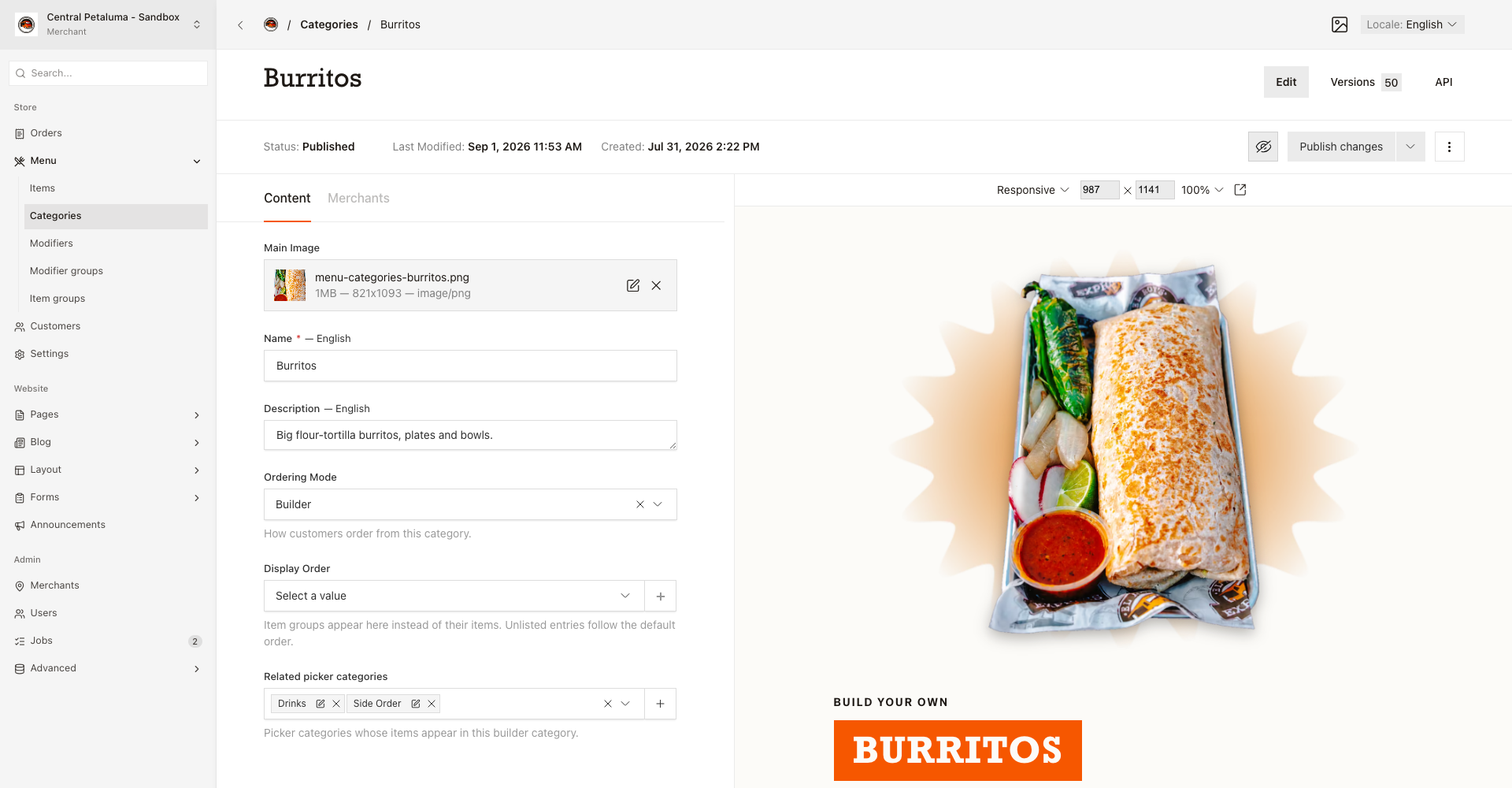
Set how customers order from a category and control the order of its entries.
A category is a menu section, and it decides how customers order from it.
Choose how customers order
Ordering mode sets how customers shop the category:
Builder: the customer picks one version of an item, adds the choices, and adds one line to the order. A builder page can also show relatedPickersections underneath.Picker: the customer sets a quantity on each card, opens a dialog for the choices, and can add several lines at once.
Set the order of the entries
Display order holds items and item groups in one list.
That order is what customers see.
An item group appears instead of its items.
Anything you leave out follows in the default order.
The list only offers what this category actually sells.
Save a new category first, because the list stays empty until then.
Show picker sections inside a builder category
Related picker categories appears only when Ordering mode is Builder. It only offers categories set to Picker, and a category cannot point at itself.
If you see Each related category must use Picker ordering mode. Remove unavailable categories or change their mode., remove the listed category or set its Ordering mode to Picker.
If you see A category cannot relate to itself. Remove this category from the field., remove the category from its own list.
Edit a category
- Choose the location.
- Open
Store > Menu > Categories. - Search by name.
- Open the category.
- Set
Ordering mode. - Arrange
Display order. - Add
Related picker categoriesfor aBuildercategory. - Choose
Publish changes. - Check the category page on the website.
The Merchants tab lists one row per location that sells the category.