
Modifier groups
Set which modifiers a customer can combine, split, or skip, and control their order.
A modifier group is the set of choices a customer sees under an item. The rules decide which choices can go together.
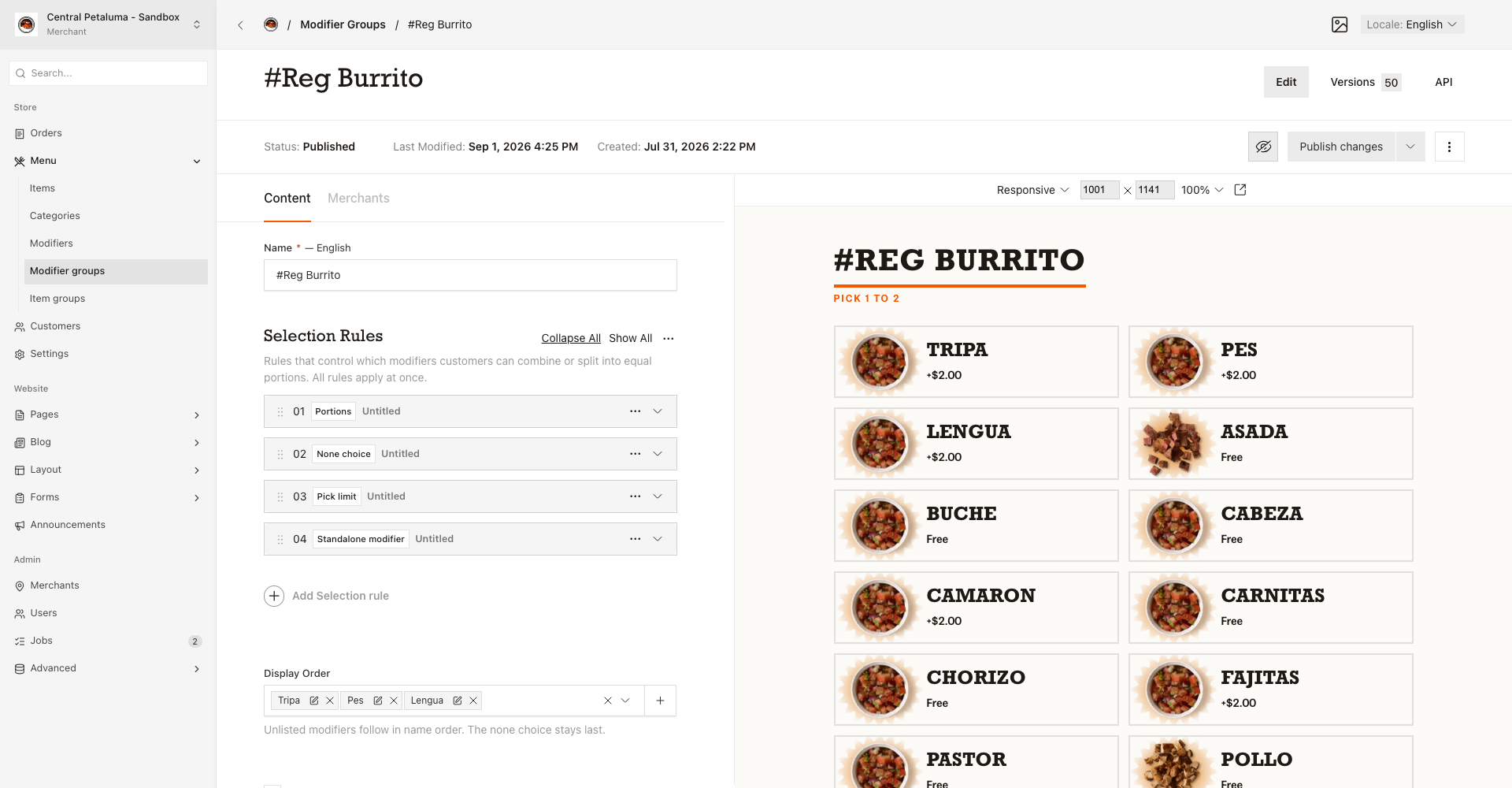
Set the order of the choices
Display order lists the choices of this group in customer order.
Anything you leave out follows in name order.
The no-choice option always stays last.
The list only offers choices this group holds.
How rules work
Every rule in Selection rules applies at the same time.
A customer selection has to satisfy all of them.
The Min Required and Max Allowed counts on the Merchants tab come from Clover.
They still apply on top of the rules.
The website refuses an order line that breaks a count or a rule. A rule can name a choice the location no longer sells. Then the website ignores that rule instead of blocking the order. Save the group first, because the choice lists stay empty until then.
Only this choice
Fill Modifiers. If a customer picks one of these, it must be the only choice in the group.
Allow only
Fill Triggers and Allowed.
The rule sits idle until a customer picks a trigger.
After that, every other choice must be a trigger or an allowed choice.
Pick limit
Fill Modifiers and Max picks.
A customer can pick at most that many from the listed set.
Choices outside the set do not count.
No choice
Fill Modifier.
This marks the choice that means "none from this group".
A customer cannot combine it with anything else in the group.
It always shows last.
Portions
Fill Modifiers.
When a customer picks two or more of these, each shows an equal share such as 1/2 or 1/3.
That share shows on the Clover order line.
One portioned choice on its own stays whole.
If you see a message
Enter the most modifiers a customer can pick.: fillMax picks.Max picks must be a whole number of at least 1.: enter a whole number of 1 or more.Max picks must be lower than the number of listed modifiers, or the rule has no effect.: lowerMax picksor list more choices.Add only one none choice rule.: a group takes one no-choice rule, so remove the extra one.Add only one portions rule.: a group takes one portions rule, so remove the extra one.
Add a rule
- Choose the location.
- Open
Store > Menu > Modifier groups. - Open the group.
- Choose
Add Selection rule. - Choose the rule type.
- Fill the boxes for that rule type.
- Set
Max picksfor a pick limit. - Choose
Publish changes. - Check the item page on the website to confirm the choices behave as intended.