

Edit items
Change the website name, description, and photo of a menu item.
An item is one thing a customer buys, such as a burrito. Use Menu > Items to change an item's website name, description, and photo. Clover sets the item's price and stock.
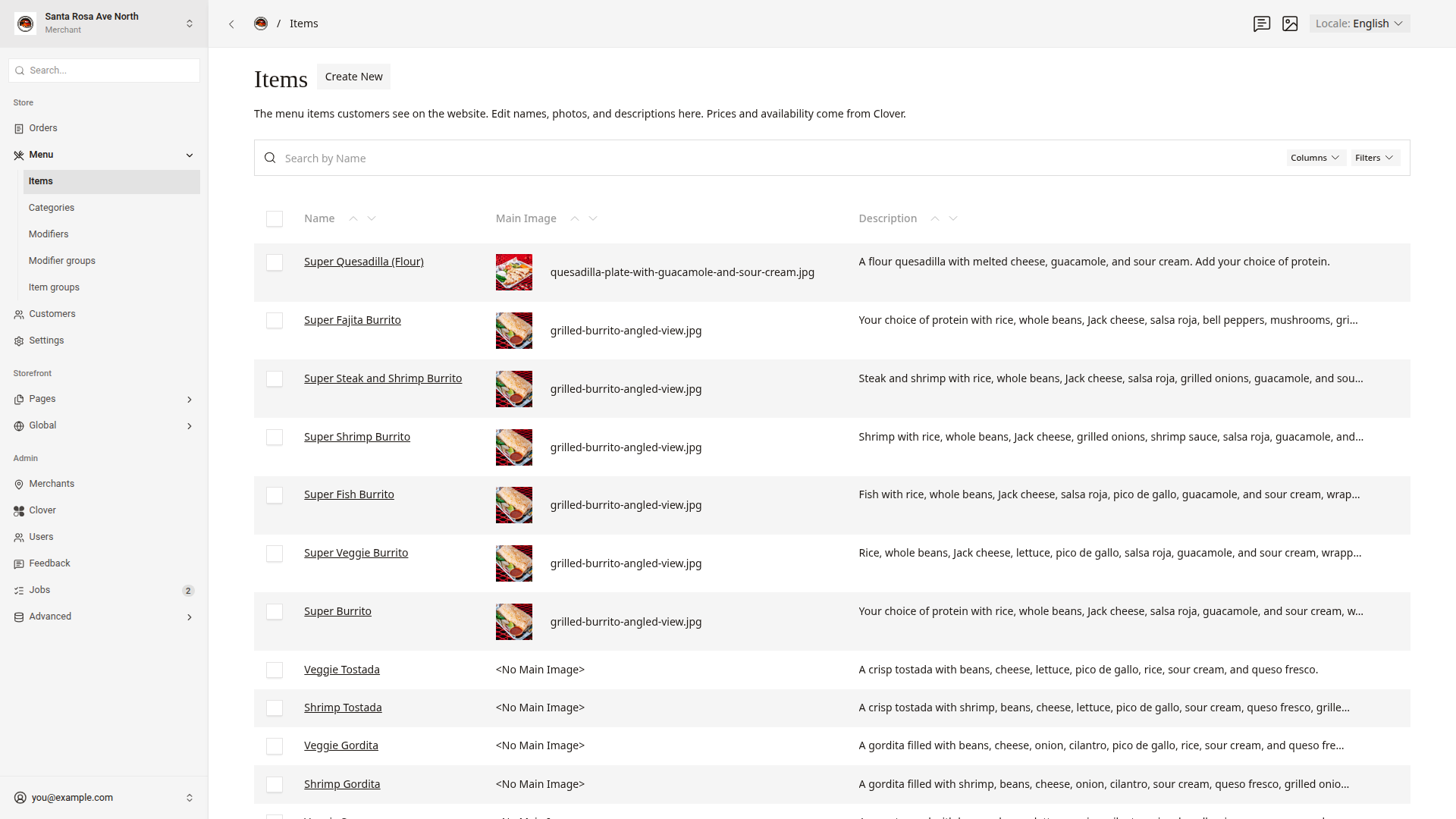
Change a name or description
- Click
Menu > Itemsin the side menu. - Type the item name in the search box.
- Click the item to open it.
- Change
NameorDescription. - Click
Save.
The website shows the change right away. To change the Spanish text, switch Locale to Español (es) first. Add a menu item shows how.
Change a photo
- In
Menu > Items, open the item. - Under
Main Image, click the X icon to remove the current photo. - Click
Choose from existingto pick a photo, orCreate Newto upload one. - Click
Save.
The website shows the photo on the item's card on the category page. Manage photos explains how to upload a good photo.
Good to know
- Items have no draft. A change goes live when you click
Save. - Every store that sells the item shows the change. The
Merchantstab lists those stores. - An item in an item group shows inside the group's card. The card uses the group's name and photo. Edit item groups shows how.
- Do not change
SlugorDedupe Key. The sync sets both values.