

Add a menu item
Add an item in Clover, then give it a website name, a photo, and a description.
Use this page when a store starts to sell a new item. You add the item in Clover first. The dashboard then makes a website entry with the Clover name, and you add the photo, description, and Spanish text.
Add the item in Clover
- In Clover, add the item at each store that sells it.
- Put the item in a Clover category. An item without a category does not show on the website.
- Turn on
Show onlinefor the item.
Give the item the same SKU at every store. If the item has no SKU, give it the same name at every store. Then all stores share one website entry.
Wait for the sync
Clover tells the dashboard about the new item. The dashboard usually adds the item within 1 minute. To get the item now, sync the store. Sync with Clover shows how.
Add the website text and photo
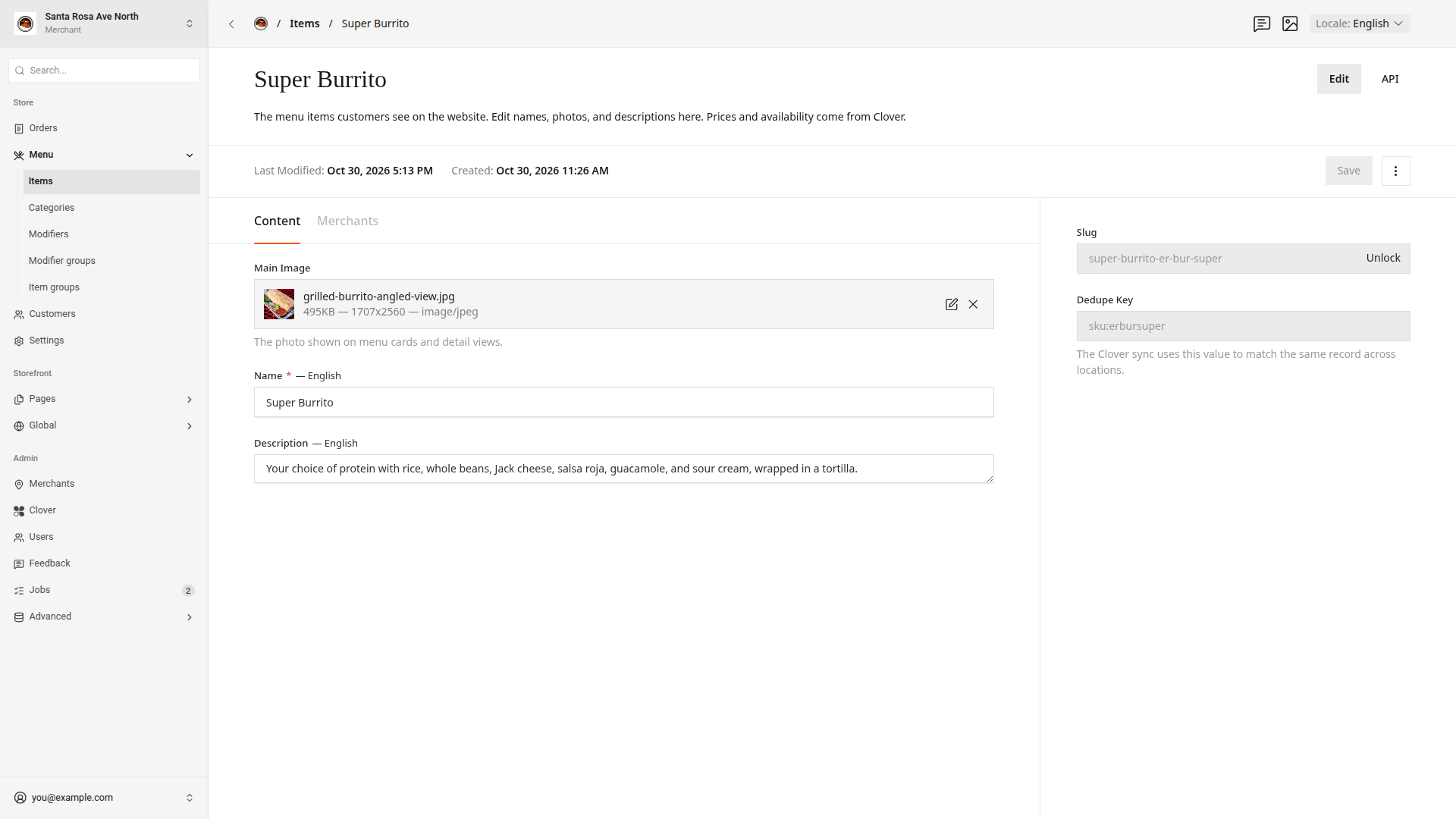
- Click
Menu > Itemsin the side menu. - Type the item name in the search box.
- Click the item to open it.
- Under
Main Image, clickChoose from existingto pick a photo, orCreate Newto upload one. - Optional: To show a different name on the website, change
Name. - Type a short description in
Description. - Click
Save.
The website shows the change right away.
Add the Spanish text
- Click
Localein the header. - Click
Español (es). - Type the Spanish name in
Name. - Type the Spanish description in
Description. - Click
Save. - Click
Localeand chooseEnglish (en-US)again.
If you leave the Spanish text empty, the Spanish website shows the English text.
Good to know
- The item shows in its Clover category. To set the item's place in that category, use
Display Order. Edit categories shows how. - An item with an age limit in Clover never shows on the website.
- If the new item matches no existing entry by SKU or name, the dashboard makes a new, empty entry. "Latte 12oz" and "Latte 12 oz" do not match.
- The dashboard sets
Namefrom Clover only once. If you rename the item in Clover later, the website keeps the old name. Change the website name inName. - Manage photos explains how to upload a photo and write its alt text.