

How the menu works
See which menu values Clover sets and which values you set in the dashboard.
Read this page before you edit the menu. Clover holds each store's items, prices, and choices. The dashboard copies that menu from Clover and adds the website names, photos, and descriptions.
Clover tells the dashboard about each change to an item, the stock, a category, a modifier, or a modifier group. The dashboard copies the change, usually within 1 minute. Every 15 minutes, the dashboard also syncs every store. Item group changes arrive only with that 15-minute sync.
What Clover sets
Change these values in Clover. The dashboard shows them, but you cannot change them there.
- Prices of items and choices.
- Stock, and items that are sold out.
Show online, which hides an item from the website.- The items in each category and in each item group.
- The choices in each modifier group, and how many choices a customer must or can pick.
What you set in the dashboard
Change these values under Menu in the side menu.
| Menu screen | What you set |
|---|---|
Items | Website name, description, photo, and Spanish text |
Categories | How customers order, the order of items, and related categories |
Modifiers | Calories, half and extra portions, and choices that conflict |
Modifier groups | The builder step and the rules for what customers can combine |
Item groups | The name, description, and photo of a family of items |
One entry for every store
Every store that sells an item in Clover shares one dashboard entry for it. When you change an item's photo, the website shows the new photo at every store.
The dashboard matches an item across stores by its Clover SKU. An item without a SKU matches by its name. Categories, modifiers, item groups, and modifier groups always match by name.
Capital letters do not count, and a dash counts as a space. "Latte 12 oz" matches "latte 12-OZ" but not "Latte 12oz". Dedupe Key shows the value that the dashboard matches.
Check which stores sell an entry
- Under
Menu, open the entry, such as an item. - Click the
Merchantstab.
The tab lists each store that sells the entry. Each row shows the entry's Clover name, price, and Available status. The price shows in cents, so 1400 means $14.00.
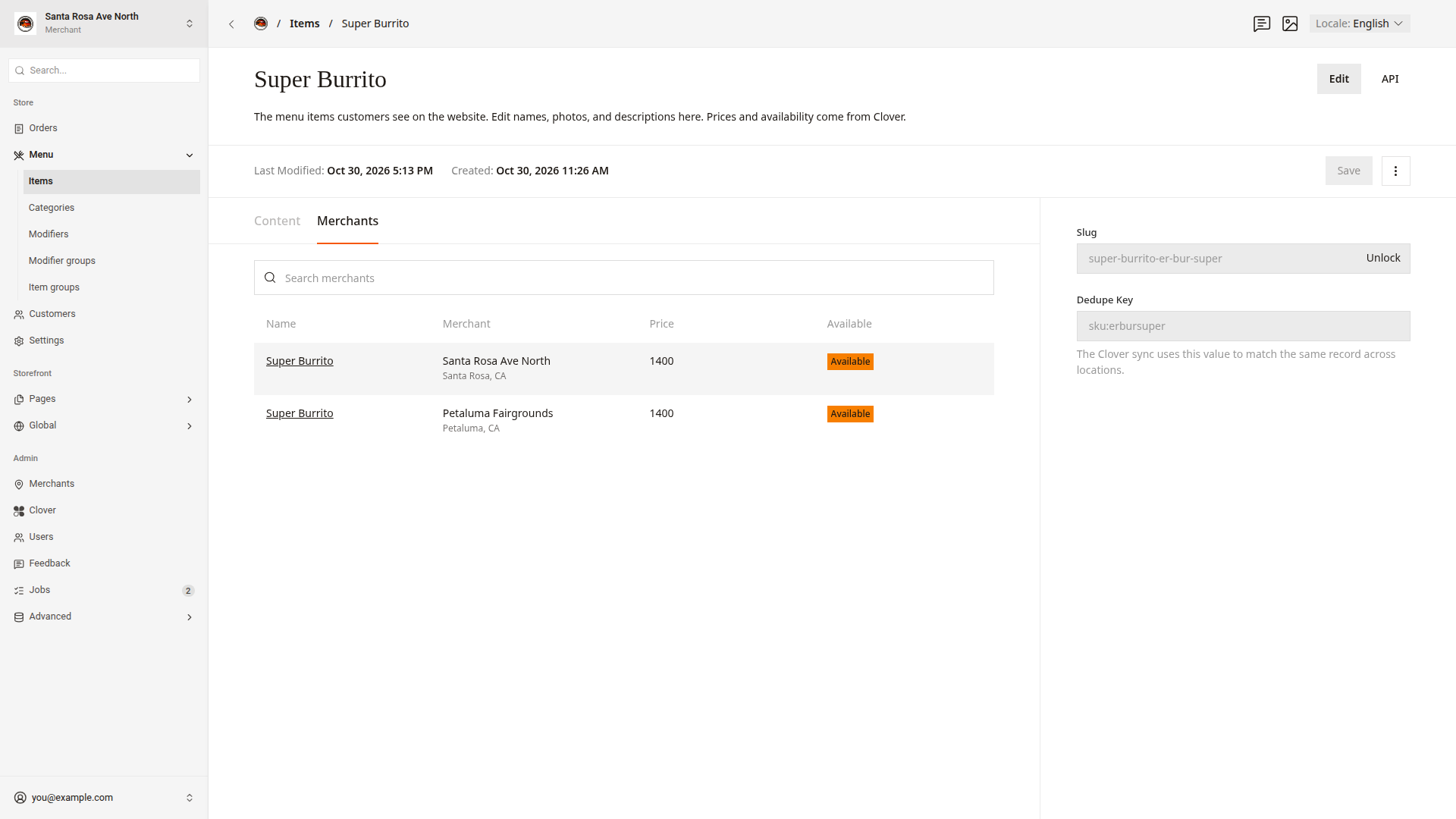
Click a row to open that store's Clover copy of the entry.
Good to know
- The dashboard never changes Clover.
Menu availabilityon the dashboard home hides an entry at one store. Turn menu items off and on shows how.- Clover or the dashboard lists every change and where to make it.