

Drafts and publishing
Know which changes go live when you save and which need Publish.
Use this page when a menu change does not show on the website. Three menu screens keep your change as a draft until you click Publish changes.
Changes that go live when you save
These screens have a Save button. The website shows the change as soon as you click Save.
Menu > ItemsMenu > Item groupsMedia
Changes that need Publish
These screens have a Publish changes button. The dashboard saves a draft about every 1.5 seconds while you type. The website does not show the draft.
Menu > CategoriesMenu > ModifiersMenu > Modifier groups
Status at the top of the screen shows whether the website shows your latest change.
Status | What it means |
|---|---|
Published | The website shows the latest version. |
Changed | The website shows an older version. Your newest changes are a draft. |
Draft | The entry was never published. The website does not use it. |
To publish, click Publish changes.
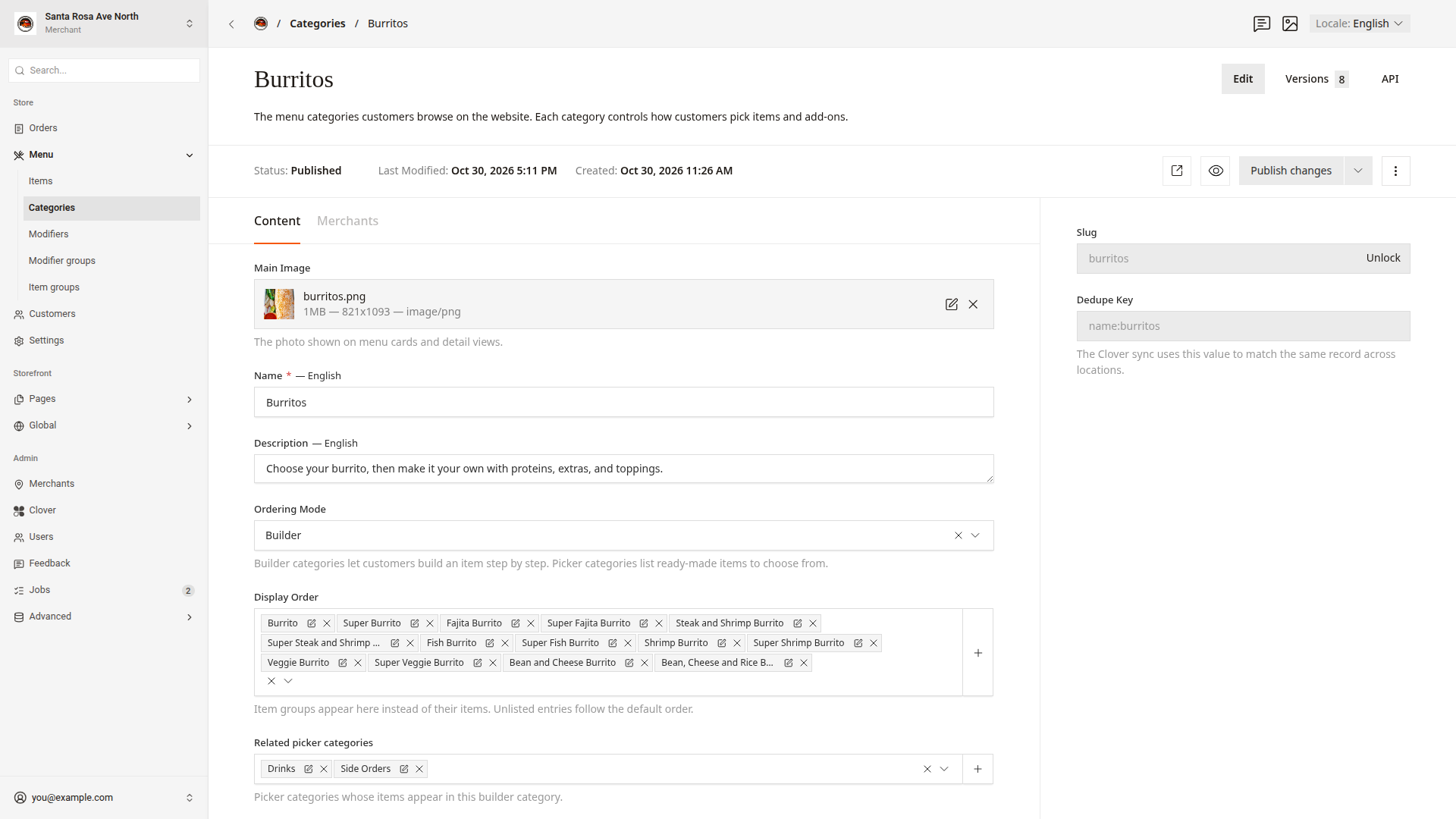
Preview a change
- Click the eye icon,
Live Preview, to see the draft as the website would show it. Categories and modifier groups have this icon. - Click the arrow icon,
View live, to open the published category on the website.
Good to know
- If a category's
StatusshowsDraft, the website does not show the category or its items. - If a modifier's or a modifier group's
StatusshowsDraft, the website shows its Clover name and ignores its dashboard settings. Versionsat the top lists the last 50 versions. Open one and clickRestore this versionto go back to it.- If you leave a screen before you publish, the dashboard keeps the draft. The website shows the draft only after you click
Publish changes.