

Edit modifier groups
Set the builder step and the rules for what customers can combine.
A modifier group is a set of choices, such as "Protein - Burrito". Clover sets which modifiers are in the group and how many a customer must or can pick. The dashboard sets the group's builder step and which choices a customer can combine.
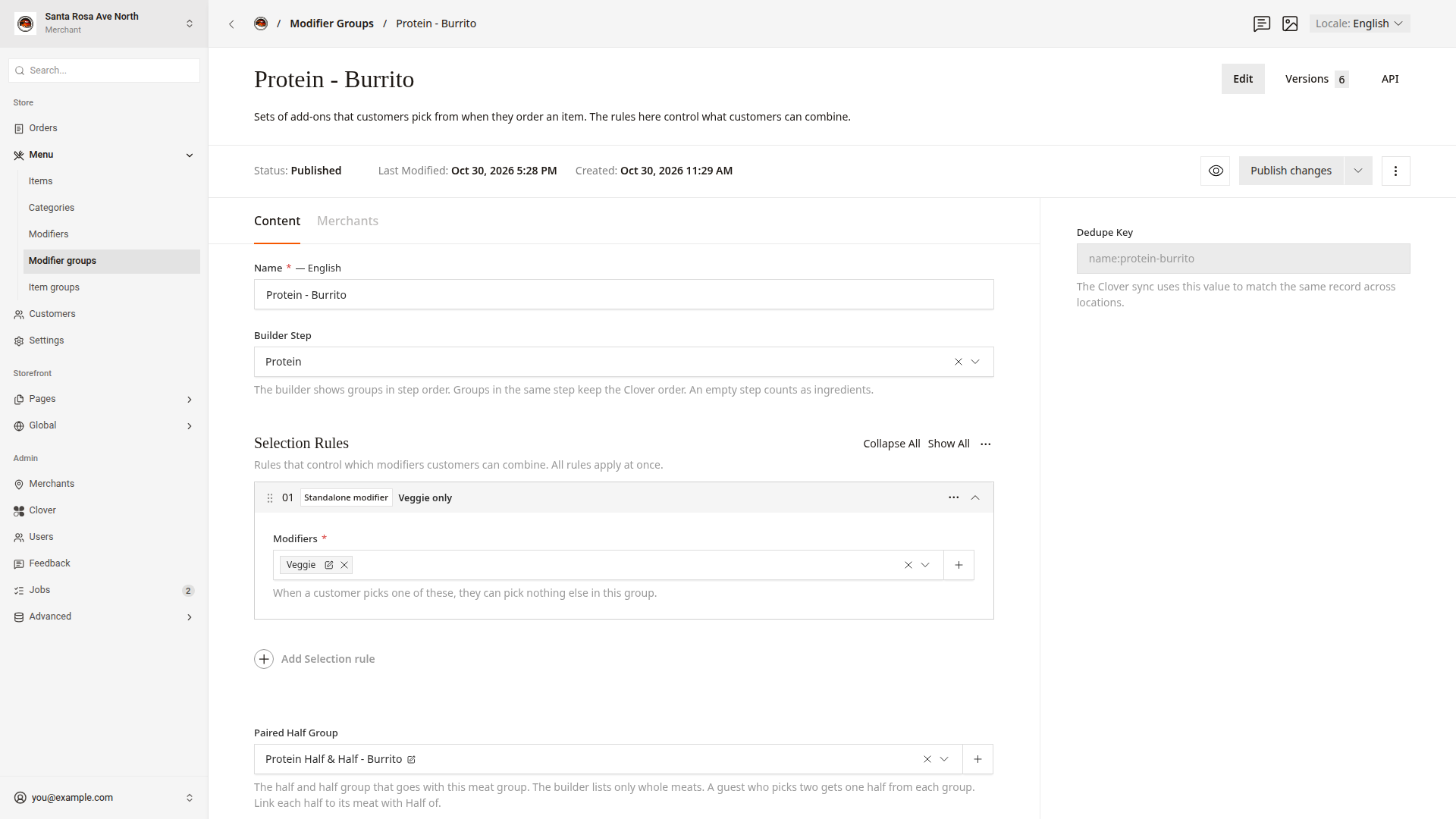
Set the builder step
In a builder category, the customer builds an item step by step. Builder Step sets the group's step.
- Click
Menu > Modifier groupsin the side menu. - Click the group to open it.
- Choose
Protein,Ingredients and removals,Extras, orSidesinBuilder Step. - Click
Publish changes.
The builder shows the steps in this order: Protein, Ingredients and removals, Extras, Sides. Groups in the same step keep the order from Clover. A group without a Builder Step shows in the Ingredients and removals step.
Add selection rules
Selection rules control which choices a customer can combine. All of a group's rules apply at the same time.
- In
Menu > Modifier groups, open the group. - Click
Add Selection rule. - Choose the type of rule.
- Fill in the rule's boxes, as the table shows.
- Click
Publish changes.
| Rule | What it does | Boxes to fill in |
|---|---|---|
Standalone modifier | When the customer picks one of these, they can pick nothing else in the group. Good for "Veggie only". | Modifiers |
Allow only | After the customer picks a trigger, they can only keep the triggers and the allowed modifiers. | Triggers, Allowed |
Pick limit | Sets the most modifiers that a customer can pick from a set. | Modifiers, Max Picks |
None choice | Sets the modifier that customers pick when they want nothing from the group. It always shows last. | Modifier |
The minimum and maximum picks that Clover sets still apply on top of these rules.
Pair a half and half group
A meat group can have a second group with half portions, such as "Protein Half & Half - Burrito". When you pair the two groups, the builder shows only the whole meats. A customer who picks two meats gets one half of each.
- In
Menu > Modifier groups, open the meat group, such as "Protein - Burrito". - In
Paired Half Group, pick the half group. - Click
Publish changes.
Each half portion must link to its whole meat with Half Of. Edit modifiers shows how.
Set the choice order
- In
Menu > Modifier groups, open the group. - Click in
Display Orderand pick the modifiers in the order that you want. - Drag the modifiers to change the order.
- Click
Publish changes.
Modifiers that you do not pick show after the picked ones, in name order. The None choice always shows last.
Publish a modifier group
The dashboard saves a modifier group draft about every 1.5 seconds while you type. The website shows a change only after you click Publish changes. Click the eye icon, Live Preview, to see the draft first.
Good to know
- If a modifier group's
StatusshowsDraft, the website shows the group's Clover name. The website also ignores itsBuilder Step, selection rules,Paired Half Group, andDisplay Order. - Half and half works only when Clover allows at most 1 pick in the meat group and requires no pick in the half group.
- If you turn off every choice in a group that customers must pick from, the website hides the items that use the group. You turn off choices in
Menu availability.